

Block-Based Template Editor
The Block-Based Editor is MailGreet’s recommended way to create professional emails without any coding. Drag and drop content blocks, customize styles, and preview your design on desktop and mobile.Editor Overview
When you open the Block Editor, you’ll see a powerful three-panel interface: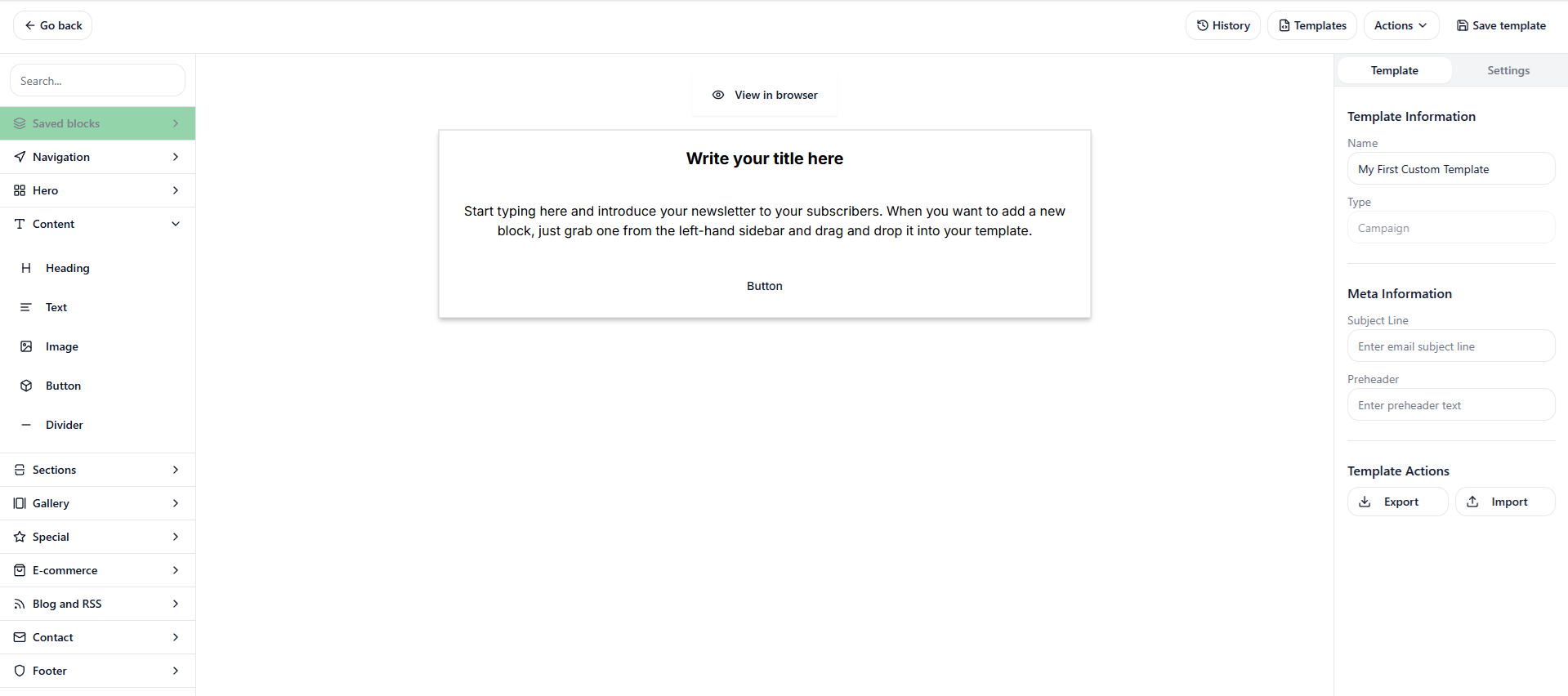

Interface Layout
Top Toolbar
The toolbar at the top provides essential actions:Light/Dark Mode
Toggle editor theme
History
Undo/redo changes
Templates
Access saved templates
Actions
Additional options
Preview Options
Left Sidebar: Content Blocks
The left sidebar has two tabs: Blocks and Settings.Content Blocks
Drag these blocks onto your canvas to build your email:Text Block
Text Block
Add paragraphs, descriptions, or any text content.Features:
- Rich text formatting
- Variable insertion (
{{first_name}}, etc.) - Click to edit directly in canvas
Heading Block
Heading Block
Create prominent headlines and section titles.Features:
- Multiple heading sizes (H1, H2, H3)
- Bold, eye-catching typography
- Perfect for email subjects
Image Block
Image Block
Add images to your email.Features:
- Upload from computer
- Paste image URL
- Alt text for accessibility
- Link images to URLs
Settings Tab
The Settings tab provides additional configuration options for your email template.Right Sidebar: Styling
The right sidebar has two tabs: Global and Block.Global Styles
Apply consistent styling across your entire email:Block Styles
When you select a block on the canvas, the Block tab shows options specific to that element:- Font Size — Text size in pixels
- Font Weight — Bold, normal, light
- Text Color — Override global color
- Alignment — Left, center, right
- Padding — Space inside the block
- Background — Block-specific background
Working with Blocks
Adding Blocks
1
Find Your Block
Browse the Blocks panel in the left sidebar
2
Drag to Canvas
Click and drag the block onto your email canvas
3
Position It
Drop it where you want it — above, below, or between existing blocks
Editing Content
Click directly on any block in the canvas to edit its content:- Text/Heading: Click to open the text editor popup
- Image: Click to upload or change the image
- Button: Click to edit text and link
Reordering Blocks
Drag blocks up or down on the canvas to reorder them. A blue indicator shows where the block will be placed.Deleting Blocks
- Select the block on the canvas
- Click the trash icon that appears
- The block is removed immediately
Using Variables
Personalize your emails with merge variables:1
Select a Text Block
Click on a Text or Heading block
2
Open the Editor
The text editing popup appears
3
Insert Variable
Type variables in the format:
{{variable_name}}Examples:- — Subscriber’s first name
- — Subscriber’s last name
- — Subscriber’s email address
Variables are replaced with actual subscriber data when the email is sent.
Preview & Export
Desktop vs Mobile Preview
Toggle between preview modes to see how your email looks on different devices:- Desktop: Full-width layout as seen on computers
- Mobile: Stacked layout as seen on phones
Export HTML
Need the raw HTML code? Click Export HTML in the toolbar to download your email as an HTML file. This is useful for:- Using the template in other systems
- Archiving designs
- Developer customization
Saving Your Work
Auto-Save
The editor automatically saves your changes as you work.Save & Return
Click the green Save & Return button in the top right to save and go back to the templates list.Best Practices
Start Simple
Begin with fewer blocks and add more as needed
Use Hierarchy
Use headings to create clear content structure
One CTA
Focus on one primary action per email
Test Often
Preview on both desktop and mobile regularly
Related Guides
Email Templates
Browse and manage your template library
HTML Templates
Build templates with custom HTML
Create Campaign
Use templates in your campaigns
Testing Campaigns
Test before you send