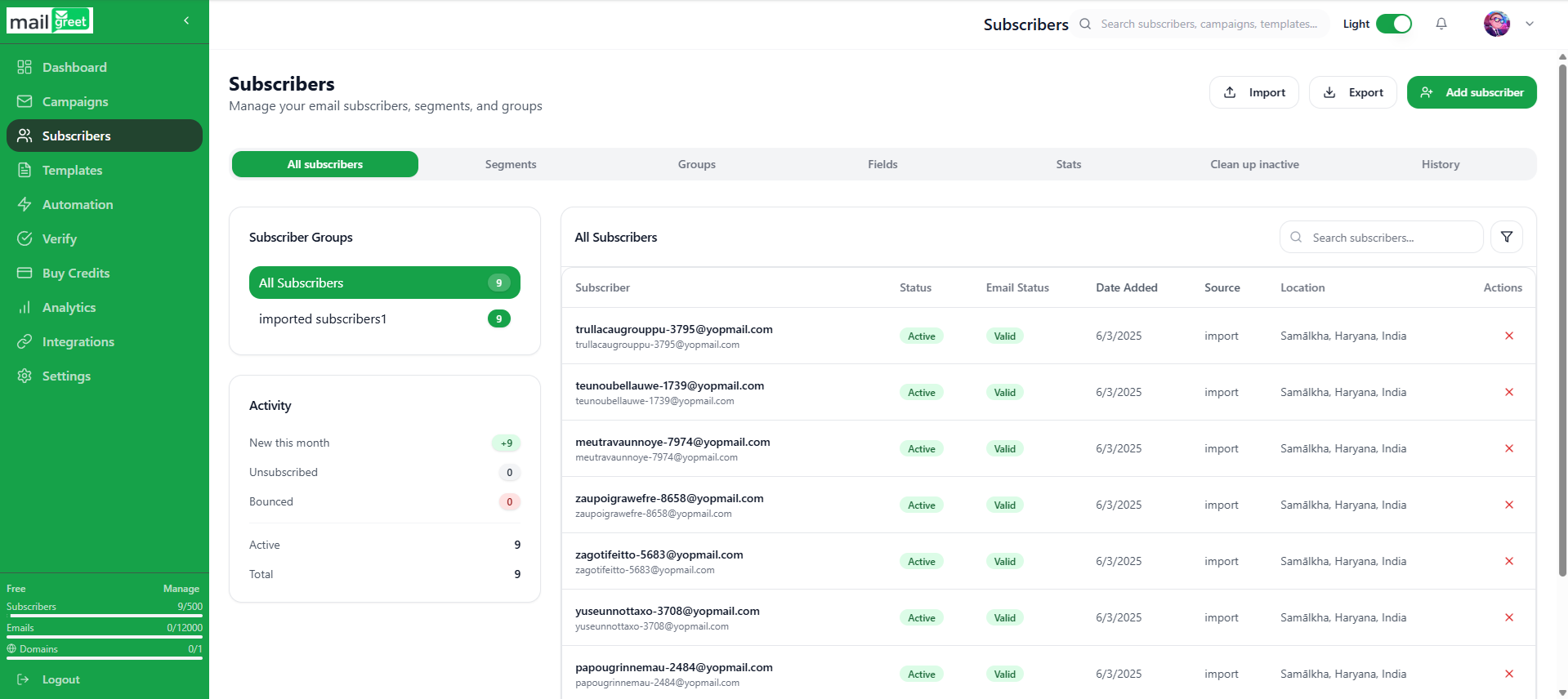

Subscribers
Import Subscribers
- Navigate to the Subscribers page.
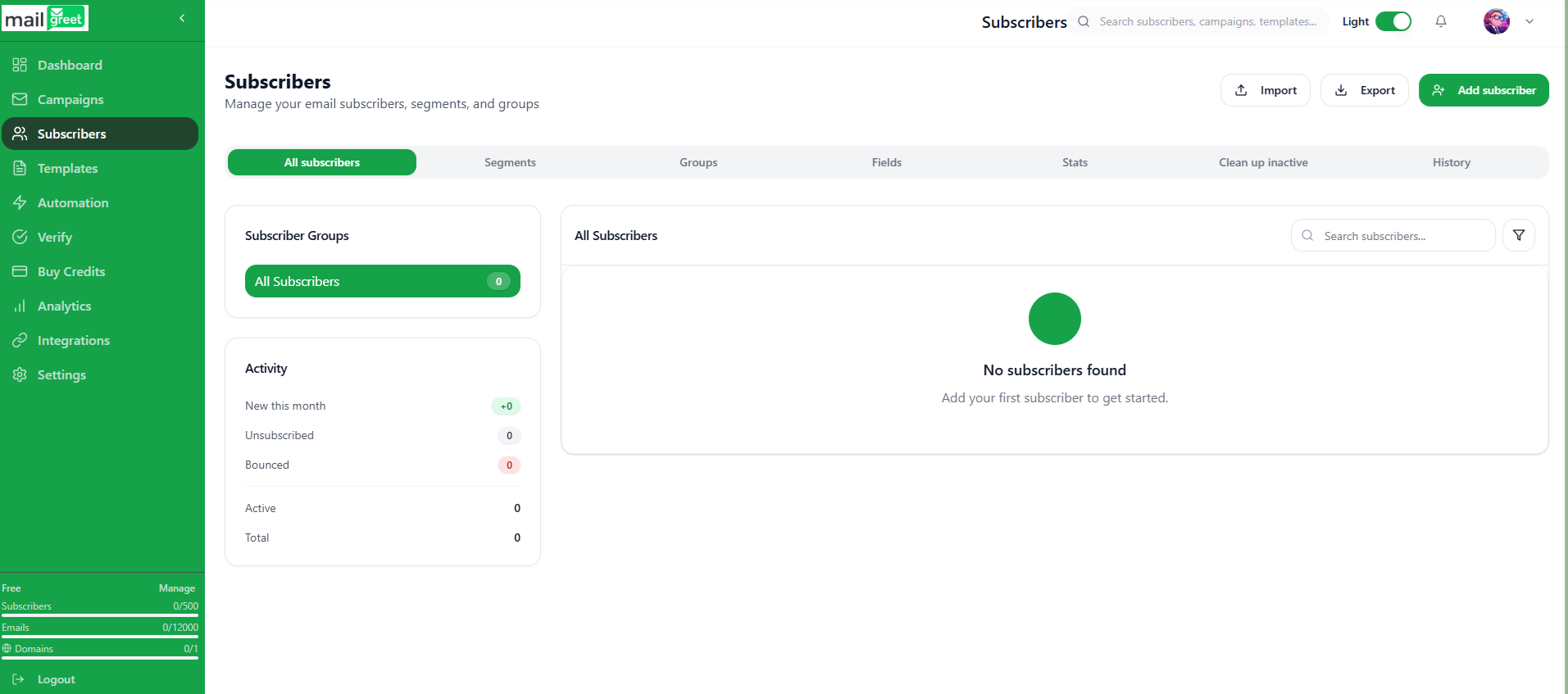
- Click on the Import button present at the top below the Search field.


- You will be redirected to the Import Subscribers page.
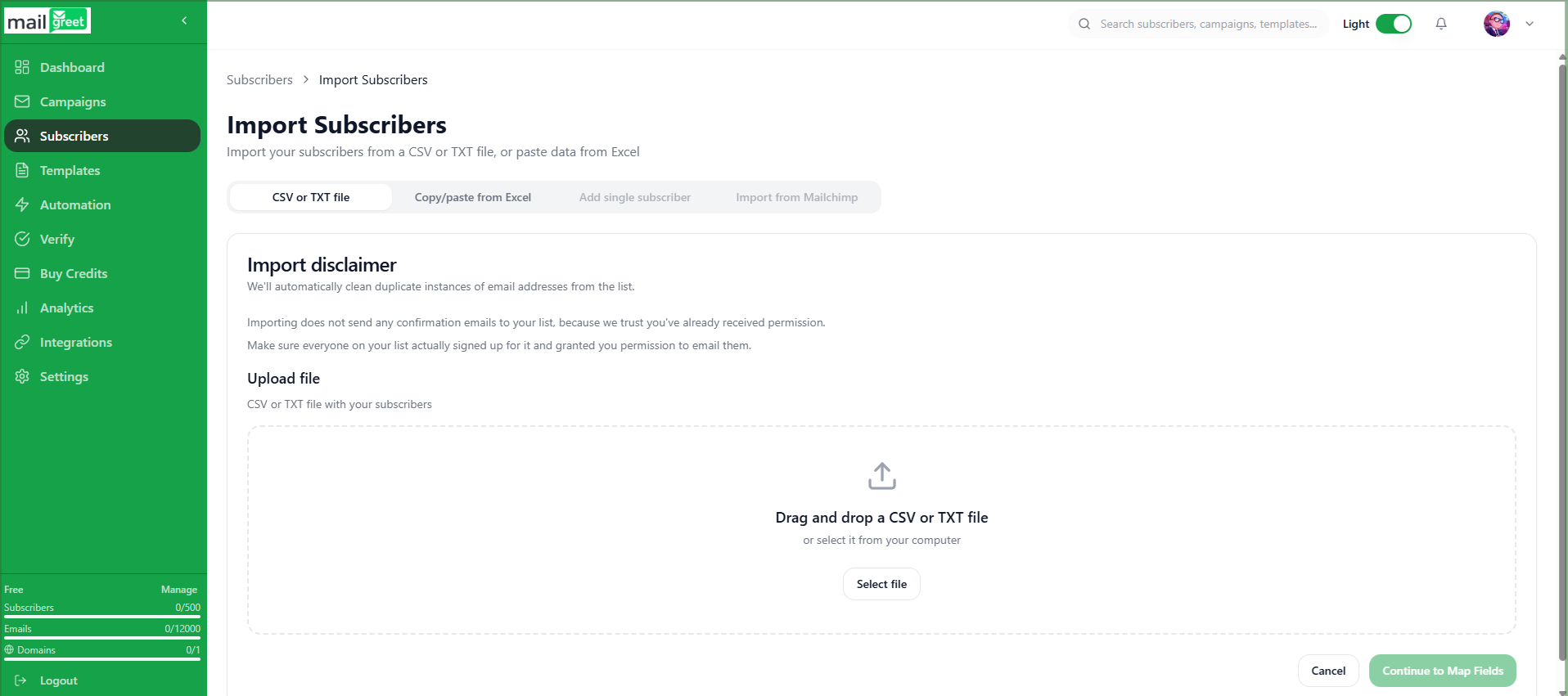
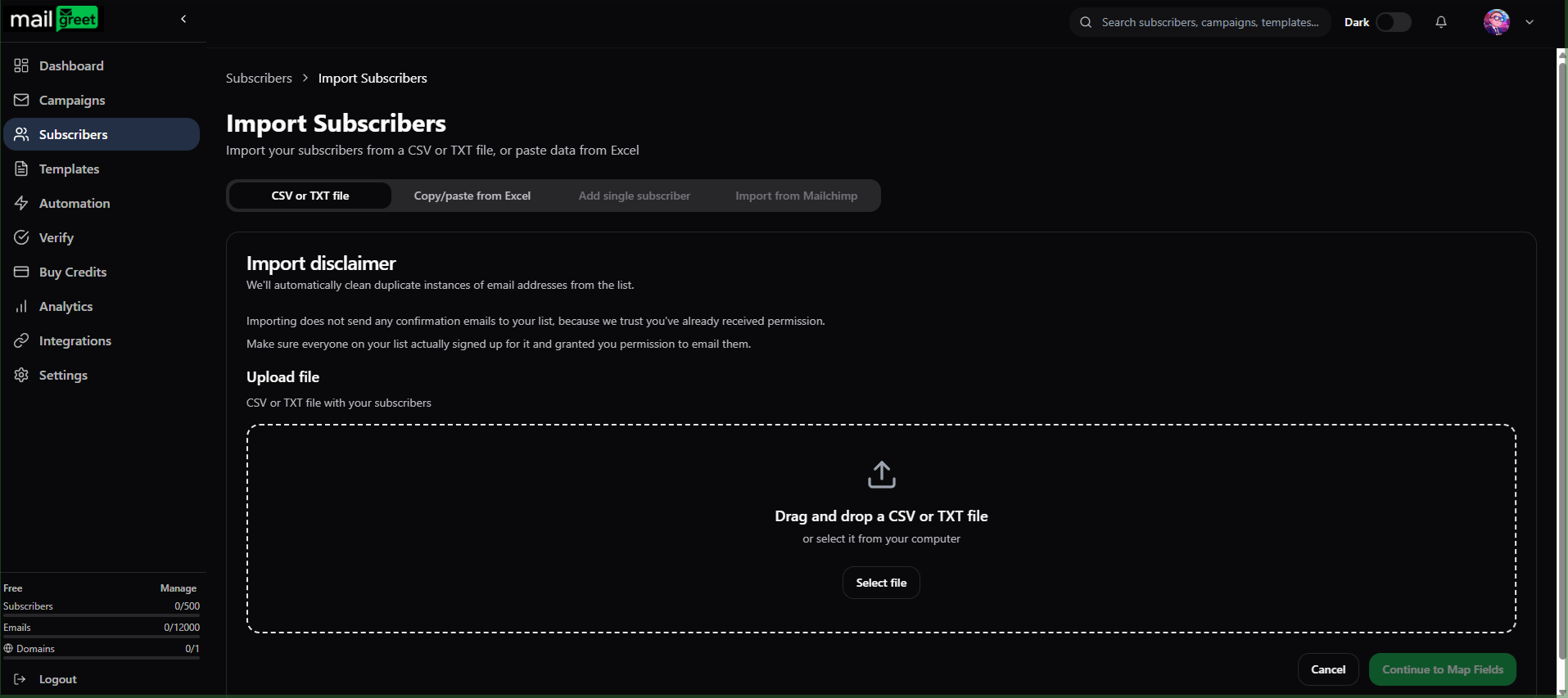
- You can import subscribers using two ways.
- First, CSV or TXT file.
- Click on the CSV or TXT file tab.


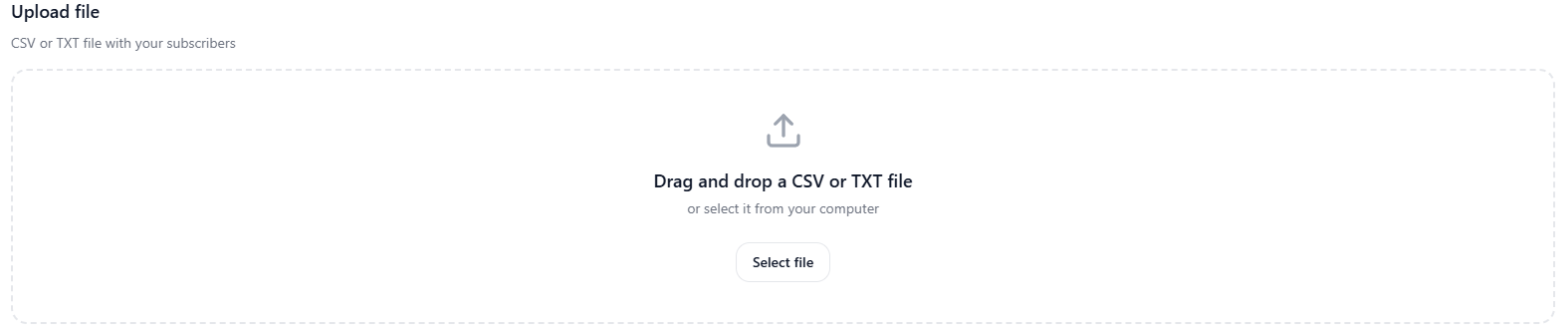
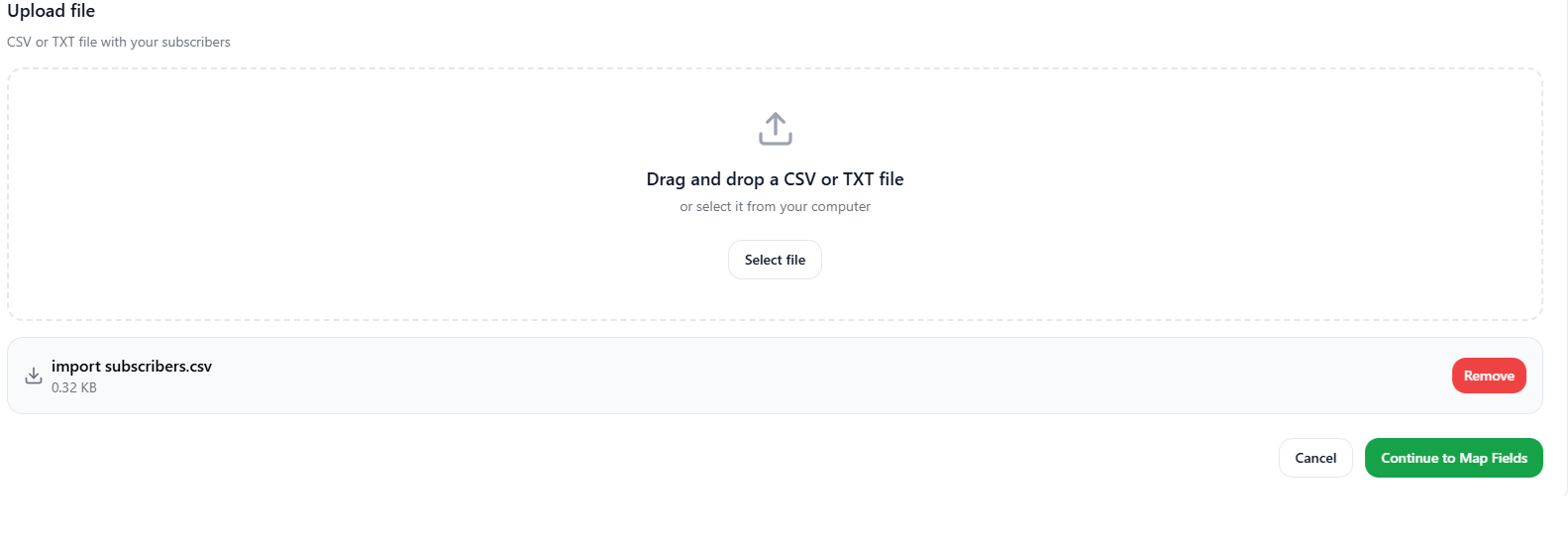
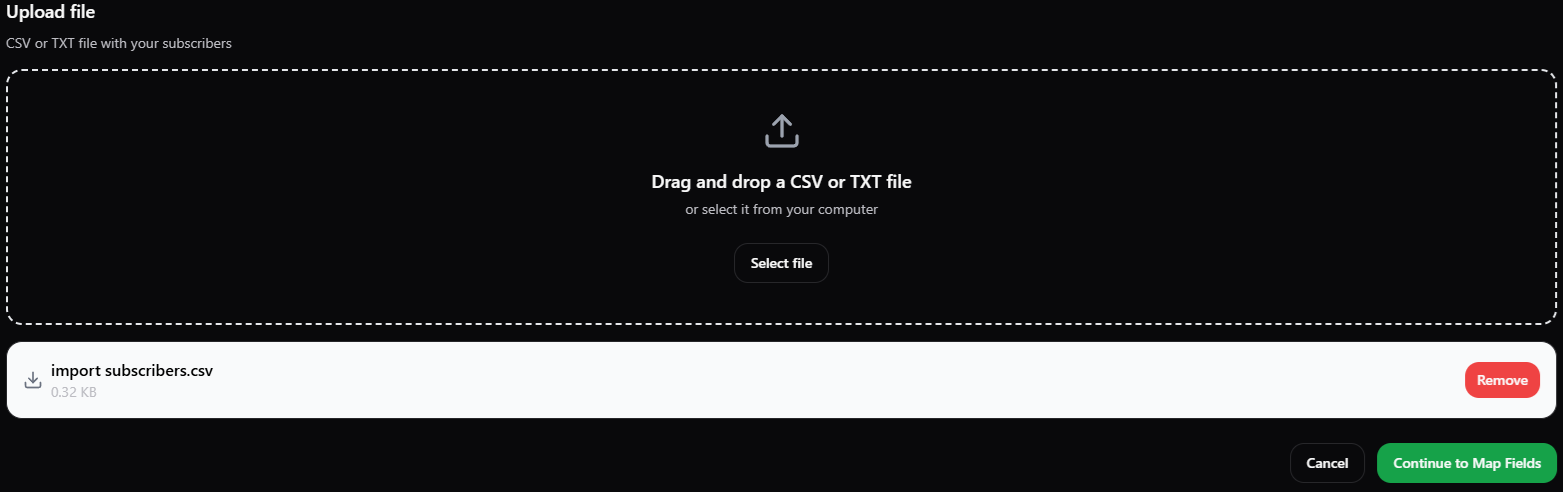
- Either drag the .csv or .txt file containing subscribers (email addresses) in the Upload file section or click on the Select file button.
- Now, click on the Continue to Map Fields button.
- You will be redirected to the Map Fields section.
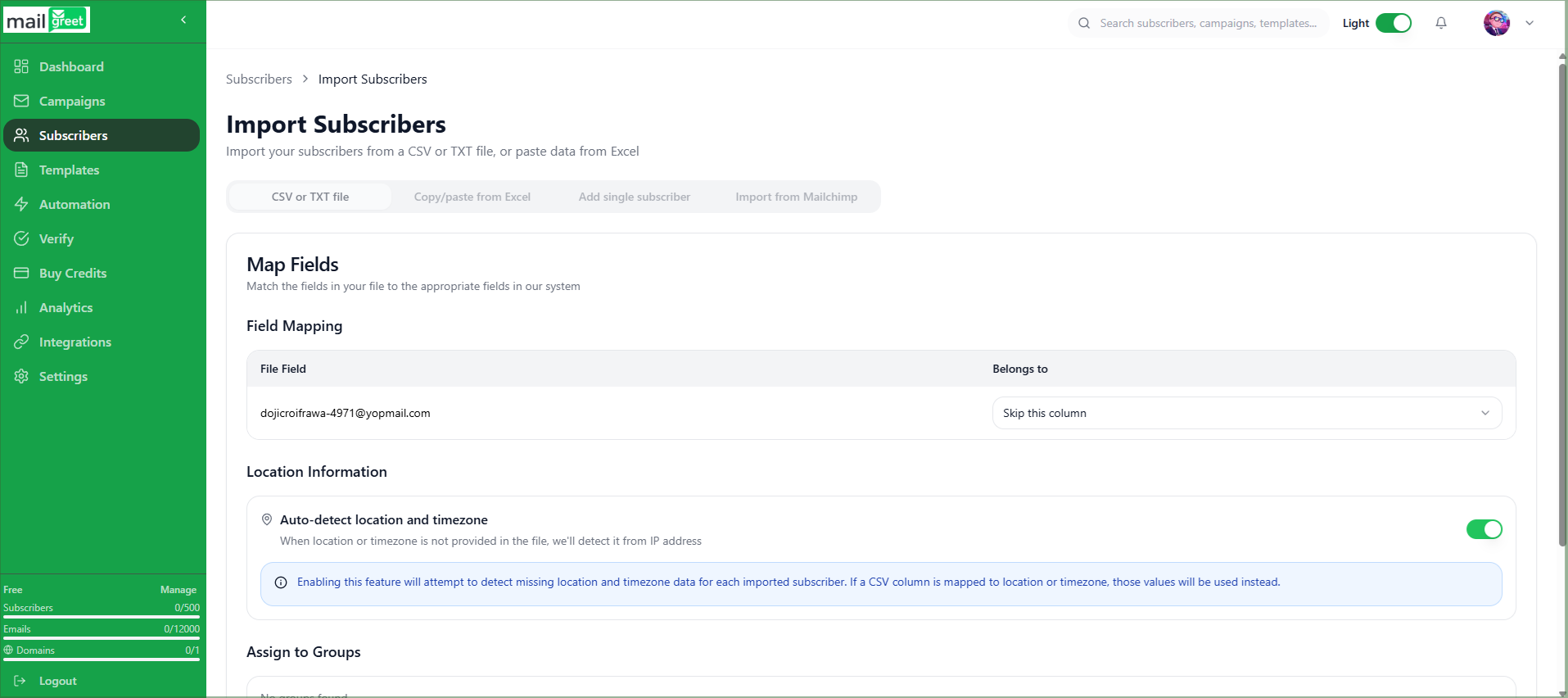
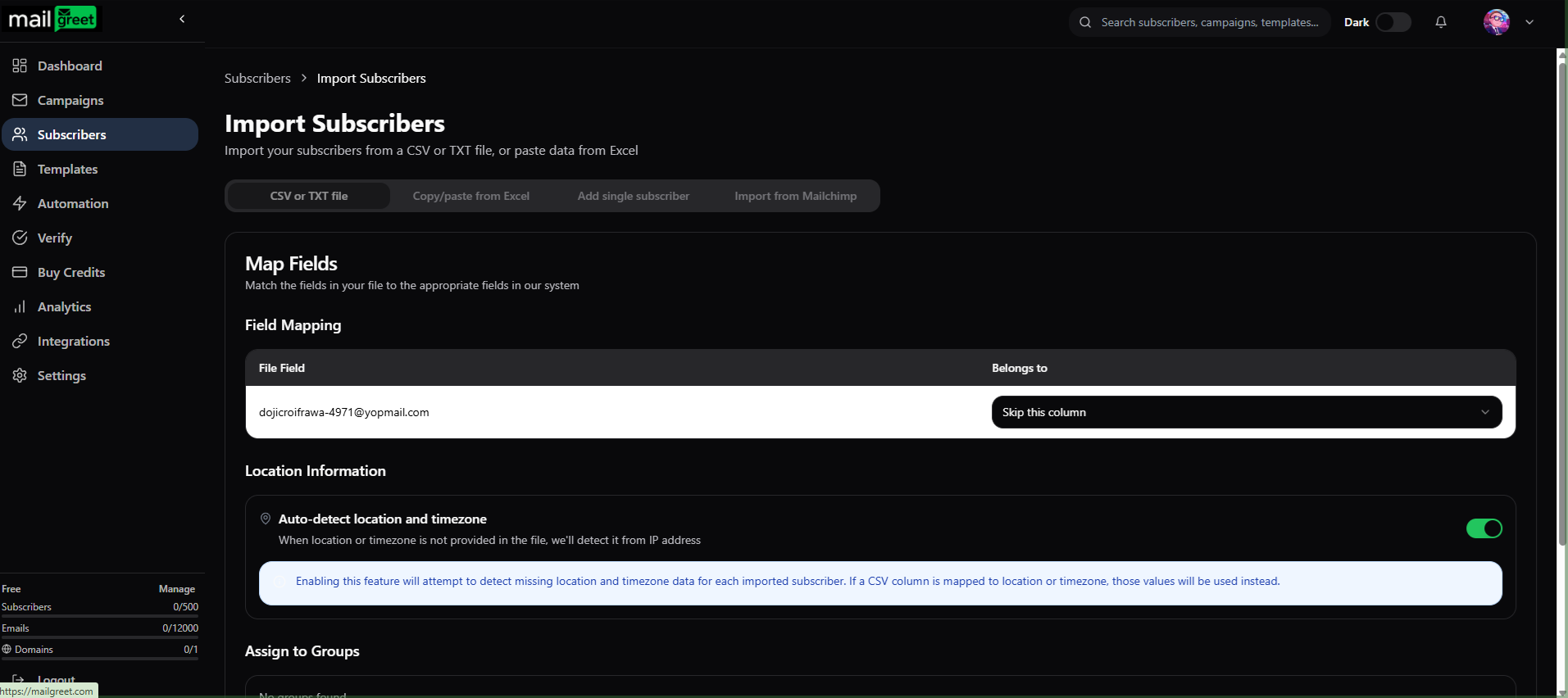
- Match the fields in your file to the appropriate fields in your system in the Field Mapping section.
- You have to choose, which column belongs to which field.
- For example, if you just made a list of email addresses in your .csv file without any heading. Then you have to map this column to the system or custom defined field such as Email, First Name, Last Name, Status, Source, Created At, Location, Timezone.
- Or you can skip this field mapping step.
- Location and Timezone are automatically detected when not provided in the file.
- You can turn this option on or off.
- Next is the Assign to Groups section.
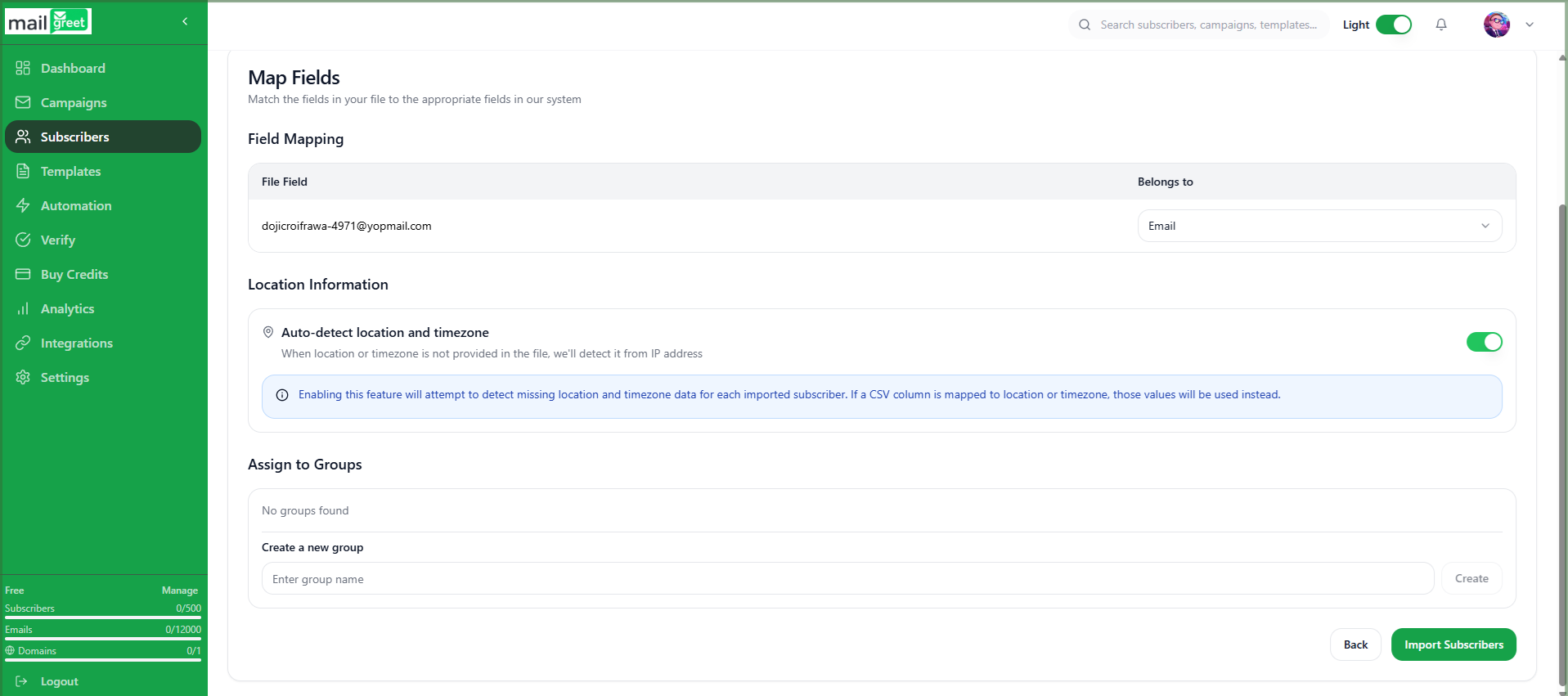
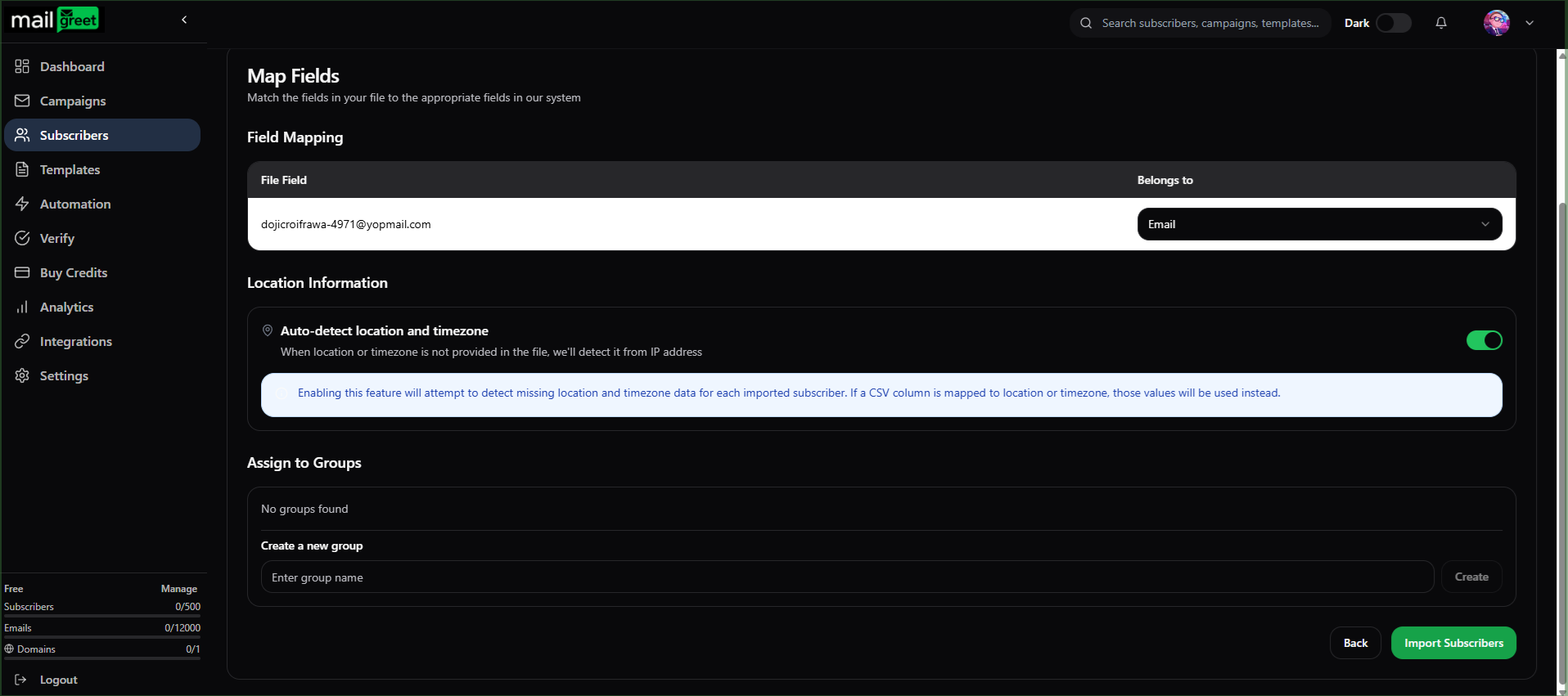
- It contains already created groups to which you can assign your imported subscribers list.
- Or, you can create your own group for the imported subscribers list right in the Assign to Groups section.
- After creating a new group or assigning the list to previously created group, click on the Import Subscribers button.
- After the import progress is complete, click on the View Subscribers button.
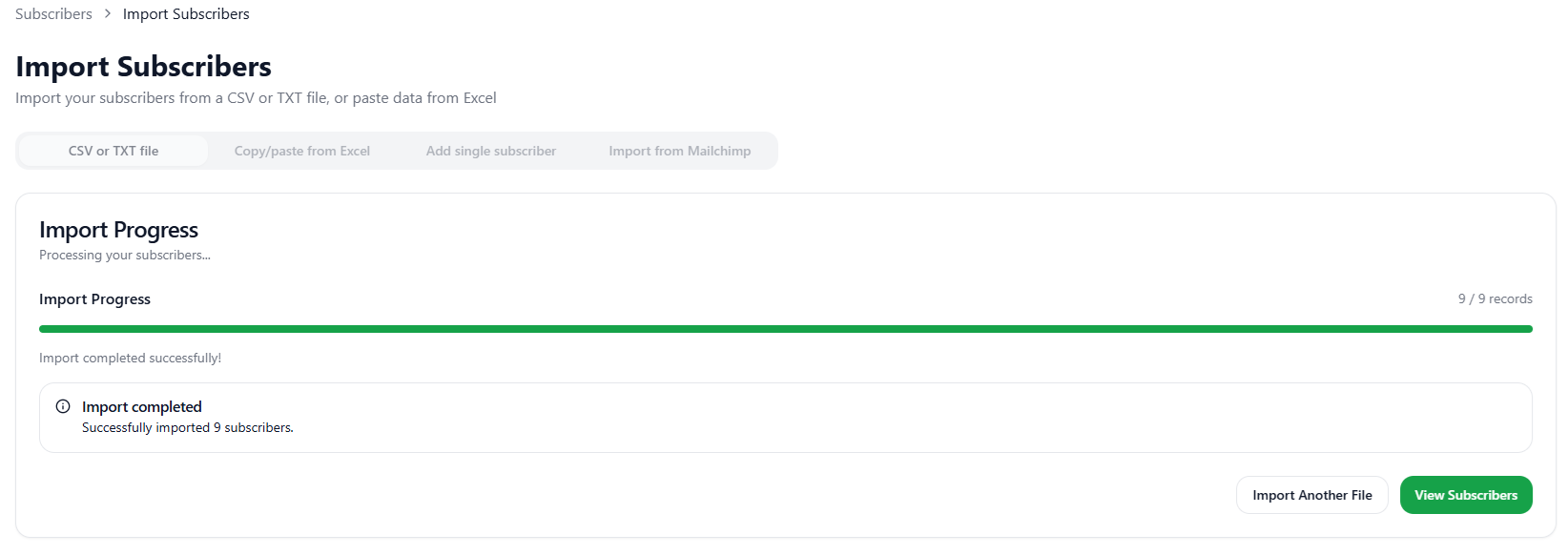
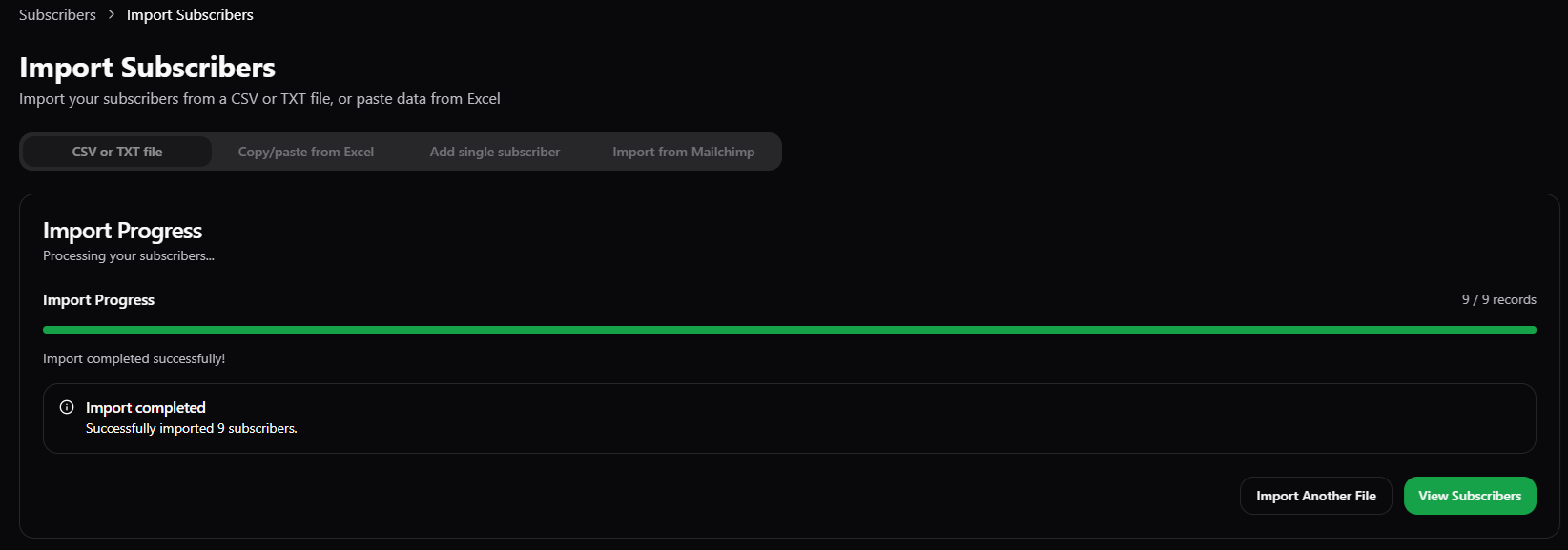
- You will be redirected to the Subscribers page.
- Where you will find the imported subscribers in the group chosen or created by you.
- Now you have successfully imported the subscribers list.