

Fields
In MailGreet, a field stores the information when a new subscriber is added to the group. At MailGreet, we offer seven system default fields to get you started:- Email, First Name, Last Name, Status, Email Status, Source, Location.Note: You cannot edit or delete the system default fields.
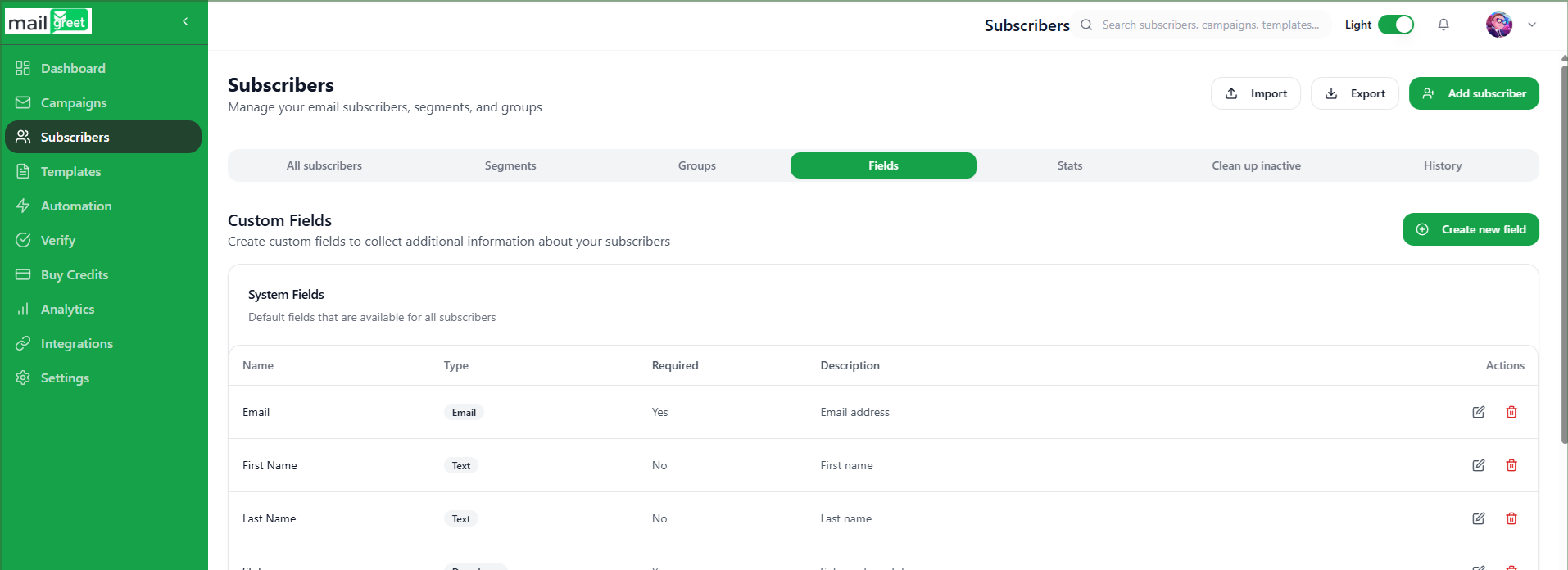
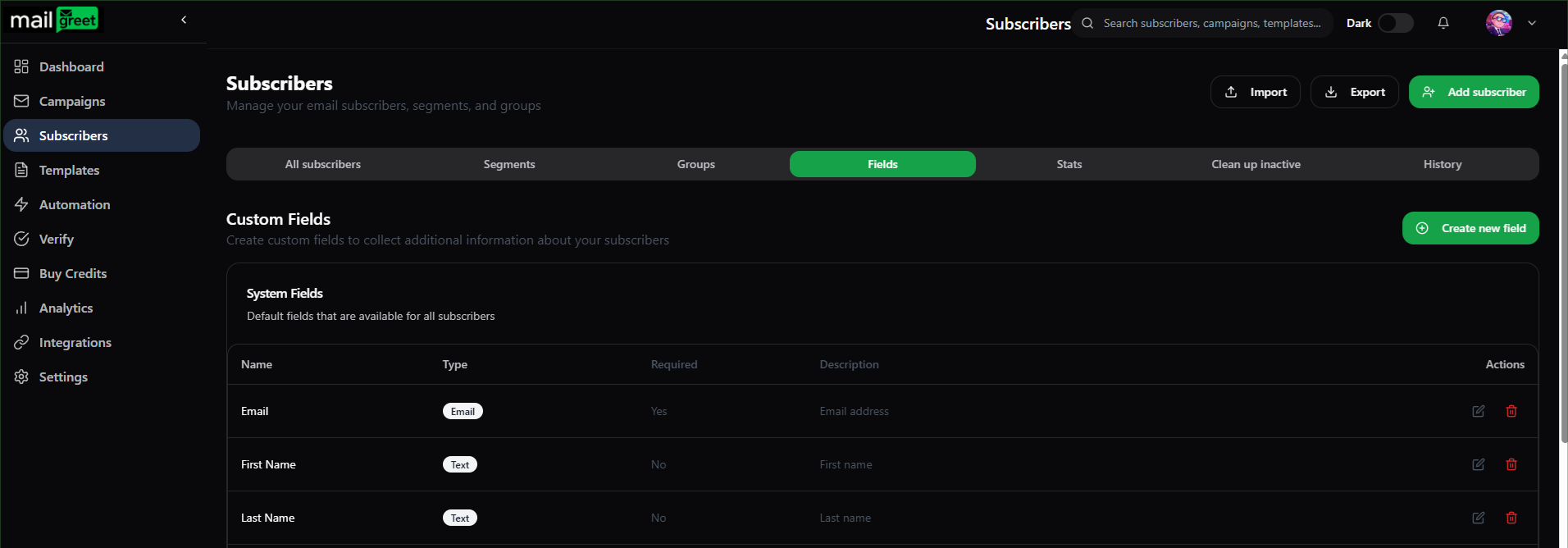
Custom Fields
Custom Fields are the fields that you create according to your own needs and rules. If you want to get additional information from the new subscriber, then you can create your own custom fields. You can use these custom fields to better manage your new subscribers. At MailGreet, you can create custom fields of the below field type:- Text, Number, Date, Yes/No, Email, Phone, URL, DropdownBenefits of Custom Fields
The advantages of Custom Fields are:-- Create custom fields for additional subscriber information
- Use data for personalization in emails
- Segment subscribers based on custom field values
- Include custom field data in forms
Create a Custom Field
To create a custom field:-- Navigate to the Subscribers page.
- Click on the Fields tab.
- Click on the Create new field button on the right side.
- A new dialog box will appear.
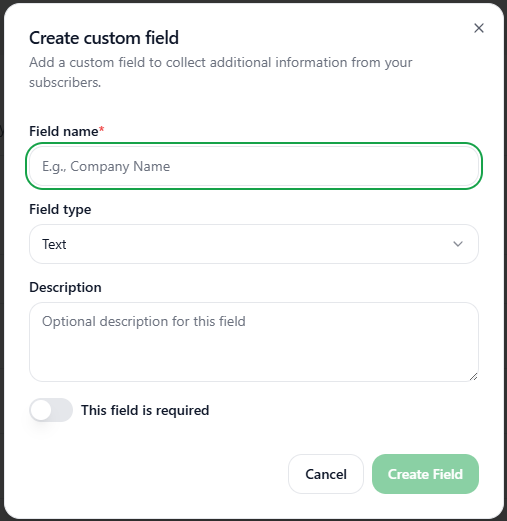
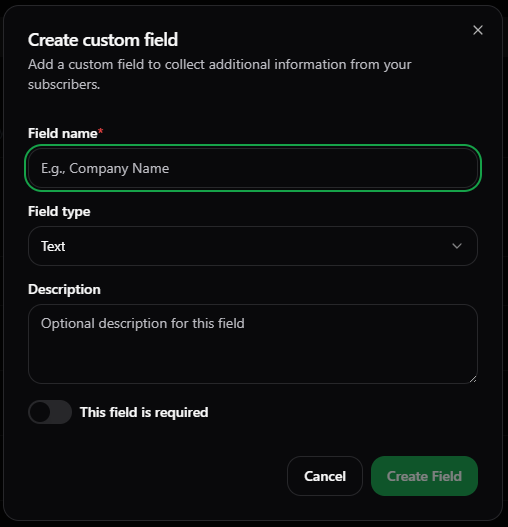
- Enter the appropriate Field name.
- Select the appropriate Field type from the dropdown menu.
- Enter the Description of the custom field.
- Toggle the button to choose if This field is required or not. The button is off by default.
- Click on the Create Field button.
- Now, you have successfully created a new custom field.


Delete a Custom Field
To delete a custom field:-- Navigate to the Subscribers page.
- Click on the Fields tab.
- Scroll down to the bottom of the page.
- You will see Custom Fields section in which custom fields created by you will be shown.
- Click on the Delete Field button which is a red dustbin icon below the Actions field of the custom field which you want to delete.


- A new dialog box will appear.
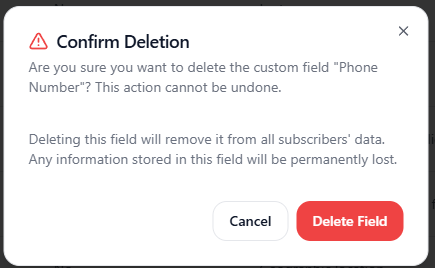
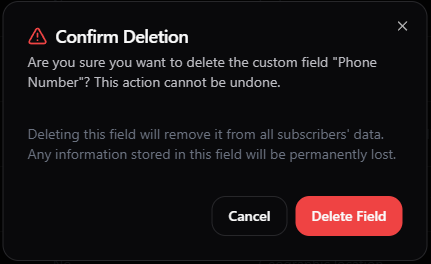
- Click on the Delete Field button to delete the custom field.
- The custom field is successfully deleted.
Edit a Custom Field
To edit a custom field:-- Navigate to the Subscribers page.
- Click on the Fields tab.
- Scroll down to the bottom of the page.
- You will see Custom Fields section in which custom fields created by you will be shown.
- Click on the Edit Field button to the far right side of the webpage under the Actions field of the custom field which you want to edit.
- A new dialog box will appear.
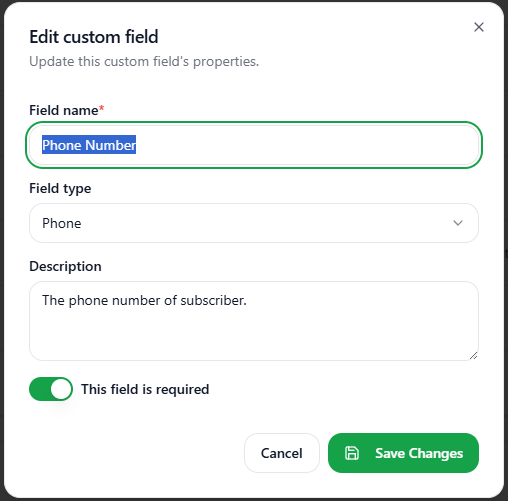
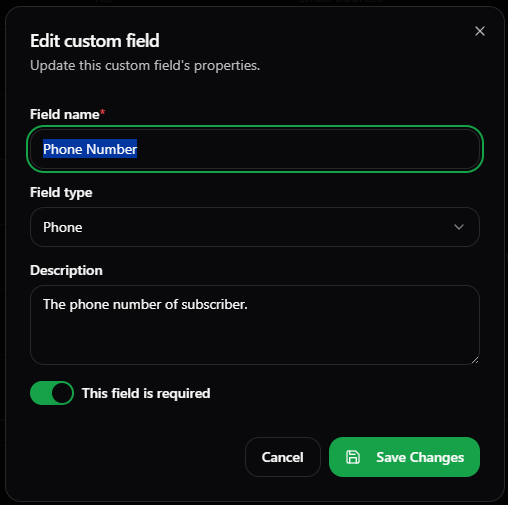
- You can edit the Field name, Field type and the Description of the custom field.
- You can also choose whether the field is required or not by toggling the button on or off.
- Make the changes and click on the Save Changes button.
- You have successfully made changes to the custom field.