
Email Templates Guide

This guide covers everything you need to know about creating, editing, and managing email templates in Mailgreet.

Understanding Templates

What Is an Email Template?

An email template is a pre-designed layout that serves as the foundation for your email campaigns. Templates in Mailgreet help you:
  • Create consistent branding across all your emails
  • Save time by reusing designs
  • Ensure mobile responsiveness
  • Maintain professional design without coding skills

Template Types in MailGreet

MailGreet offers several types of templates:
  1. Gallery Templates: Pre-designed templates created by MailGreet
  2. Saved Templates: Custom templates you’ve created and saved
  3. Recent Templates: Templates you’ve recently used
  4. Drag & Drop Editor: Create custom templates from scratch
  5. HTML Editor: For advanced users who want to code their own templates
  6. Plain Text Emails: Simple text-only emails without HTML formatting

Using Pre-built Templates

  1. Navigate to Templates in the sidebar
  2. Click Create Template
  3. Select Gallery Templates
  4. Browse categories:
    • Newsletters
    • Promotions
    • Events
    • Holidays
    • Announcements
    • Welcome emails
After selecting a template:
  1. Click to edit any text block by clicking on it
  2. Replace placeholder images by clicking on image blocks
  3. Change colors by selecting design elements and using the color picker
  4. Add or remove content blocks using the sidebar
  5. Adjust spacing and layout using the design settings
  6. Preview how your template looks on desktop and mobile devices
  7. Save your customized template with a unique name

Creating Custom Templates

Starting from Scratch

Create a completely custom template:
  1. Go to Templates > Create Template
  2. Select Drag & Drop Editor
  3. Choose a starting layout:
    • Basic (minimal structure)
    • Newsletter (multiple content sections)
    • Promotional (focused on a call-to-action)
    • Announcement (text-heavy with headline)

Using the Drag & Drop Editor

The editor interface consists of:
  • Content Panel: Left sidebar with blocks you can drag into your template
  • Canvas: Center area where you build your template
  • Settings Panel: Right sidebar with style and formatting options
  • Top Toolbar: Preview, undo/redo, save, and other global actions

Adding Content Blocks

Build your template by adding various content blocks:
  • Structure Blocks: Define the layout columns (1, 2, or 3 columns)
  • Content Blocks:
    • Text: Headlines, paragraphs, and lists
    • Image: Add and edit images
    • Button: Call-to-action buttons
    • Divider: Horizontal lines to separate content
    • Social: Social media icons and links
    • Video: Embed video (displays as thumbnail)
    • Footer: Unsubscribe links and company info
    • Custom HTML: Add custom code

Styling Your Template

Maintain consistent styling with these features:
  • Global Styles: Set default colors, fonts, and spacing for the entire email
  • Background Colors: Set colors for the email, sections, or individual blocks
  • Typography: Control font family, size, and formatting
  • Spacing: Adjust padding and margins
  • Borders: Add and style borders around content blocks
  • Mobile Responsiveness: Preview and adjust how your email looks on mobile

Advanced Template Features

Saving Content Blocks

Save frequently used sections for reuse:
  1. Hover over any content block
  2. Click the “Save block” icon
  3. Give your saved block a name
  4. Access saved blocks from the Content panel for future use

Dynamic Content

Add personalized elements that change based on subscriber data:
  • Merge Tags: Insert subscriber field values using the merge tag selector
    • Basic fields: {$first_name}, {$last_name}, {$email}
    • Custom fields: Any fields you’ve created
    • Default values: Fallback text if the field is empty
  • Conditional Content: Show different content based on subscriber data
    1. Select a content block
    2. Click “Conditional Display” in the settings panel
    3. Set rules based on subscriber fields or segments
    4. Create alternative content for different conditions

Using Images Effectively

Best practices for images in templates:
  • Image Hosting: All images are automatically hosted on MailGreet’s servers
  • Recommended Dimensions:
    • Full-width images: 600px wide
    • Two-column images: 280px wide
    • Three-column images: 180px wide
  • File Size: Keep images under 1MB for faster loading
  • Formats: Use JPG, PNG, or GIF formats
  • Alt Text: Always add alternative text for accessibility
  • Mobile Optimization: Images automatically resize on mobile devices

Adding Interactive Elements

Enhance engagement with interactive components:
  • Polls and Surveys: Add clickable options that link to different URLs
  • Countdown Timers: Add urgency for time-limited offers
  • Animated GIFs: Add motion to highlight key content
  • Social Media Feeds: Display recent social media posts
  • Product Grids: Showcase multiple products with images and prices

Template Management

Organizing Your Templates

Keep your templates organized for easy access:
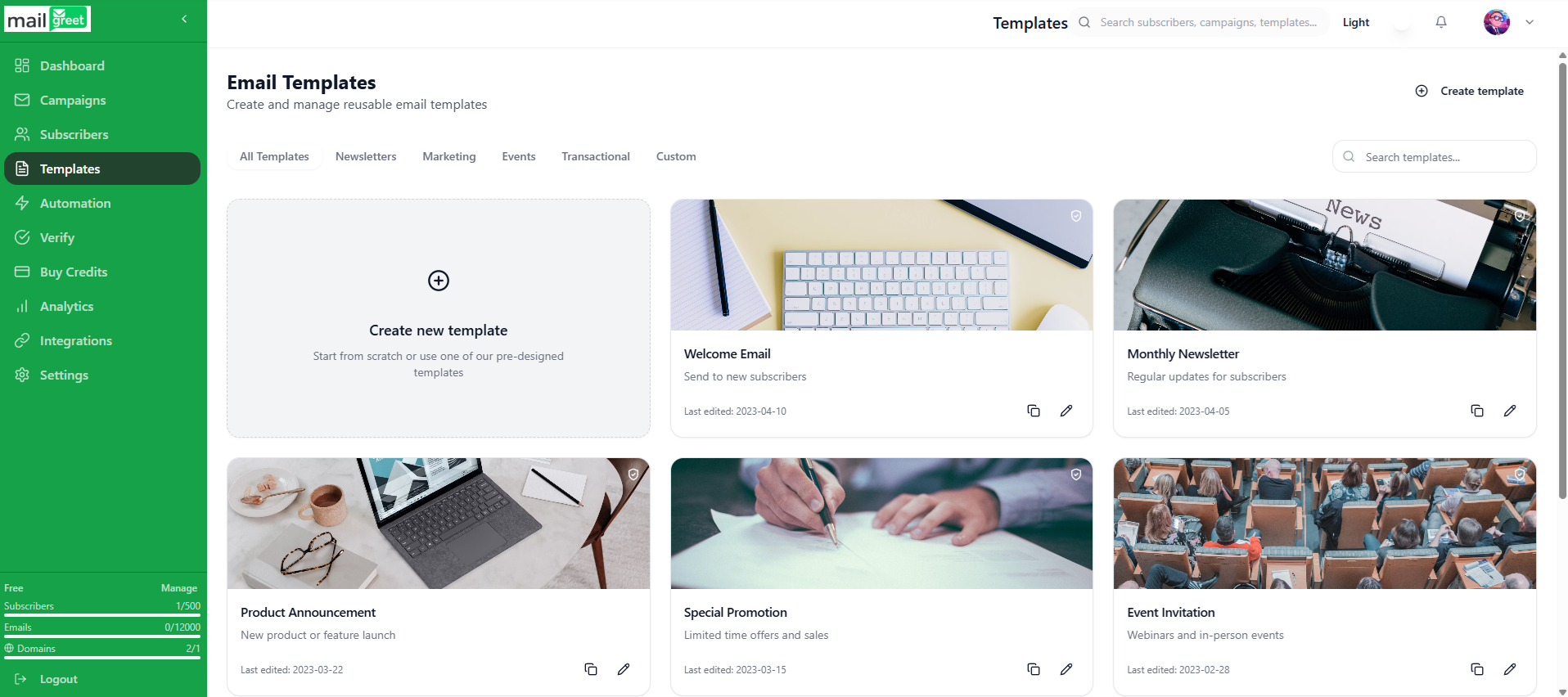
  1. Go to Templates in the sidebar to see all your templates
  2. Use folders to organize templates by purpose:
    • Click New Folder to create a category
    • Drag and drop templates into folders
    • Rename, move, or delete folders as needed
  3. Use the search bar to find templates by name
  4. Sort templates by date created or last modified

Editing Existing Templates

Update your templates at any time:
  1. Find the template in your Templates section
  2. Click on it to open the preview
  3. Click Edit to make changes
  4. Any changes will create a new version while preserving the original
  5. Click Save when finished

Duplicating Templates

Create variations of existing templates:
  1. Find the template you want to duplicate
  2. Click the “more options” menu (three dots)
  3. Select Duplicate
  4. Give your copy a new name
  5. The duplicate will appear in your templates list
  6. Make changes to the copy without affecting the original

Sharing Templates

Share templates with team members (available on Multi-user plans):
  1. Open the template you want to share
  2. Click the “more options” menu (three dots)
  3. Select Share
  4. Choose who can access the template
  5. Set permission levels (view only or edit)
  6. Click Share Template

HTML Email Templates

Creating Custom HTML Templates

For users with HTML knowledge:
  1. Go to Templates > Create Template
  2. Select HTML Editor
  3. Write or paste your HTML code
  4. Click Preview to test your design
  5. Use the Merge Tags menu to add personalization
  6. Click Save when finished

HTML Email Best Practices

When coding your own templates:
  • Use table-based layouts for maximum email client compatibility
  • Keep your HTML code simple and clean
  • Use inline CSS styles (many email clients strip <head> and <style> tags)
  • Set a max-width of 600-700px for best display across devices
  • Test your template in multiple email clients
  • Include both HTML and plain text versions
  • Avoid JavaScript (it’s stripped by most email clients)
  • Use web-safe fonts or web font alternatives

Importing HTML Templates

To use templates designed elsewhere:
  1. Go to Templates > Create Template
  2. Select HTML Editor
  3. Paste your HTML code or upload your HTML file
  4. MailGreet will automatically process your code
  5. Test and preview to ensure compatibility
  6. Make any necessary adjustments
  7. Save your imported template

Testing Your Templates

Preview Modes

Before using your template in a campaign:
  1. Click Preview in the template editor
  2. Test these views:
    • Desktop Preview: How it appears on computers
    • Mobile Preview: How it displays on smartphones
    • Plain Text: The text-only version of your email

Spam Testing

Check if your template might trigger spam filters:
  1. From the template preview, click Spam Test
  2. The system will analyze your content for:
    • Spam trigger words
    • Text-to-image ratio
    • Link density
    • Other potential spam indicators
  3. Review the report and make suggested changes

Email Client Testing

Test how your template appears in different email clients:
  1. From the template preview, click Email Client Test
  2. Select which email clients to test (Gmail, Outlook, Apple Mail, etc.)
  3. Send a test to see screenshots of your email in each client
  4. Identify and fix any rendering issues

Template Troubleshooting

Common Issues and Solutions

Template appears differently in email clients
  • Simplify your design
  • Avoid complex CSS
  • Use table-based layouts
  • Test in multiple email clients before sending
Images not displaying properly
  • Check image dimensions
  • Verify file size isn’t too large
  • Ensure proper file format (JPG, PNG, GIF)
  • Always include alt text
Responsive design issues on mobile
  • Use the mobile preview to check layout
  • Simplify multi-column designs
  • Increase font sizes for readability
  • Make buttons larger for touch screens
Template loading slowly
  • Optimize image file sizes
  • Reduce the number of images
  • Simplify complex designs
  • Remove unnecessary code
Personalization tags not working
  • Verify correct syntax: {$field_name}
  • Check that fields exist in your subscriber data
  • Add default values for missing fields

Best Practices

Design Principles

Create effective email templates by following these principles:
  • Hierarchy: Guide the reader’s eye with clear visual hierarchy
  • Consistency: Maintain consistent branding, colors, and styling
  • Whitespace: Use adequate spacing to avoid cluttered appearance
  • Simplicity: Keep designs clean and focused on your message
  • Readability: Use legible fonts and adequate contrast

Content Recommendations

For maximum engagement:
  • Keep your most important content “above the fold”
  • Use a single, clear call-to-action per email
  • Include your logo at the top for instant brand recognition
  • Write concise, scannable content
  • Use bullet points for easy reading
  • Maintain a balance of 60% text to 40% images

Mobile Optimization

With most emails opened on mobile devices:
  • Use single-column layouts for small screens
  • Set a minimum font size of 14px for body text
  • Make buttons at least 44px tall for easy tapping
  • Ensure adequate spacing between clickable elements
  • Test all templates on mobile devices

Accessibility Guidelines

Make your emails accessible to everyone:
  • Include alt text for all images
  • Maintain high contrast between text and background
  • Use a logical reading order
  • Don’t rely solely on color to convey information
  • Provide text alternatives for complex visuals
  • Use proper heading structures