

Getting Started with MailGreet
Welcome to MailGreet! This quickstart guide will walk you through sending your first email campaign. Let’s get you up and running in just a few steps.1
Sign Up & Log In
If you haven’t already, create your free MailGreet account. Once you’ve verified your email, log in to your dashboard.
2
Add Subscribers
Navigate to Subscribers in the sidebar and add your first contacts: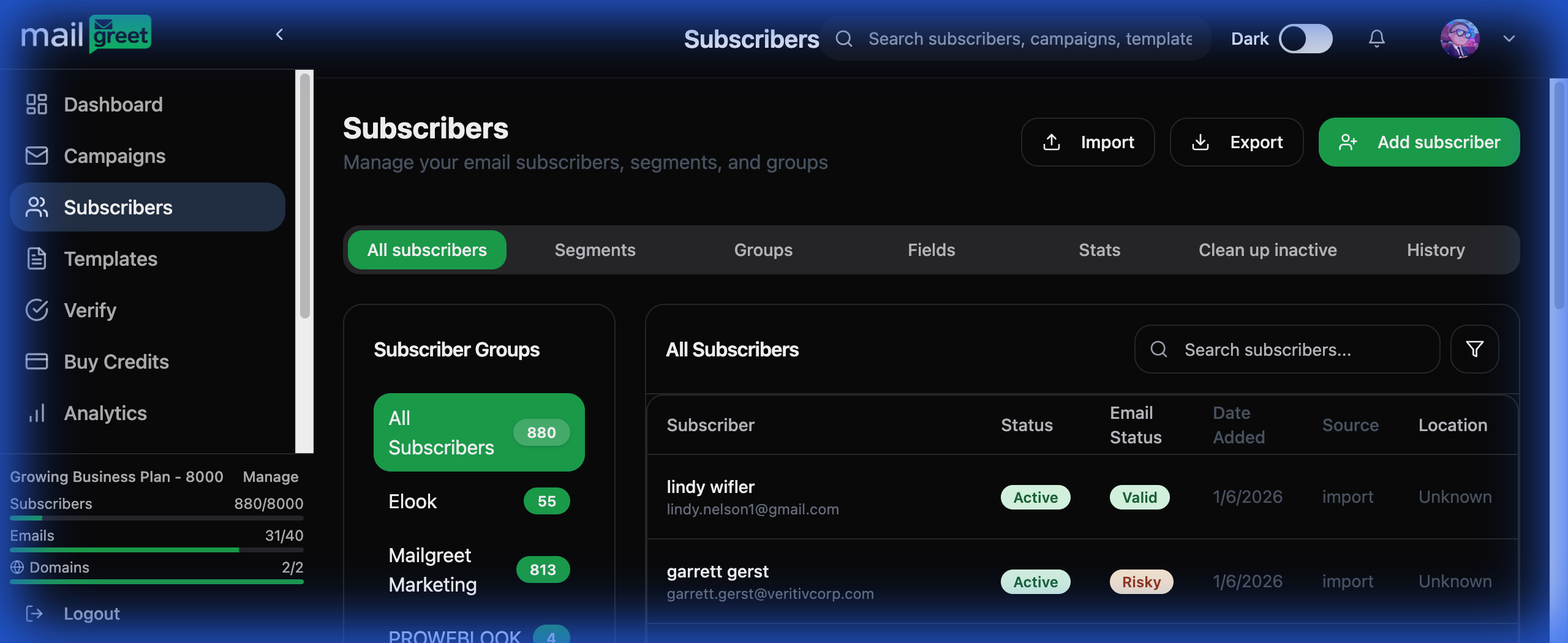
- Click Add subscriber for individual contacts
- Click Import to upload a CSV file with multiple subscribers
- Create a Group to organize your contacts (e.g., “Newsletter”, “Customers”)
3
Create a Template
Go to Templates and create your email design: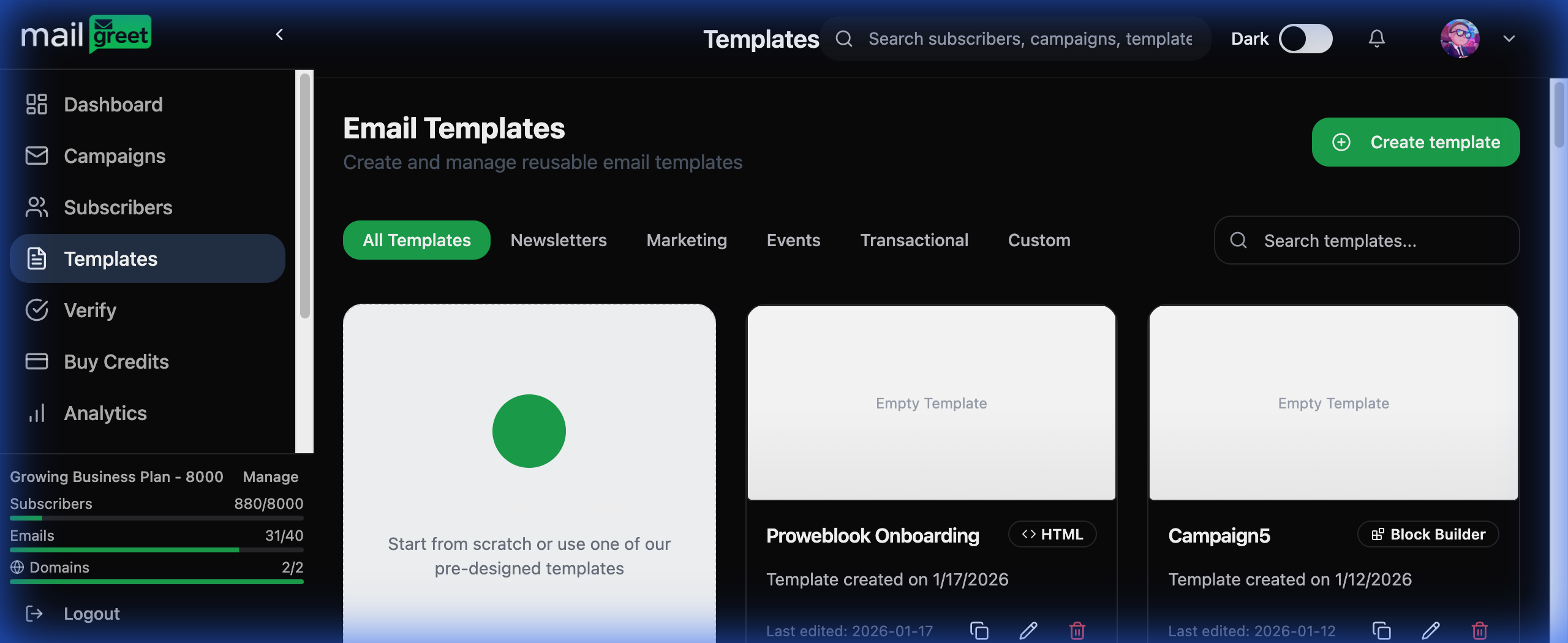
- Click Create template
- Choose between Block Builder (visual) or HTML (code)
- Select a pre-designed template or start from scratch
- Customize colors, text, and images to match your brand
- Save your template for future use
4
Launch Your Campaign
Head to Campaigns and create your first email: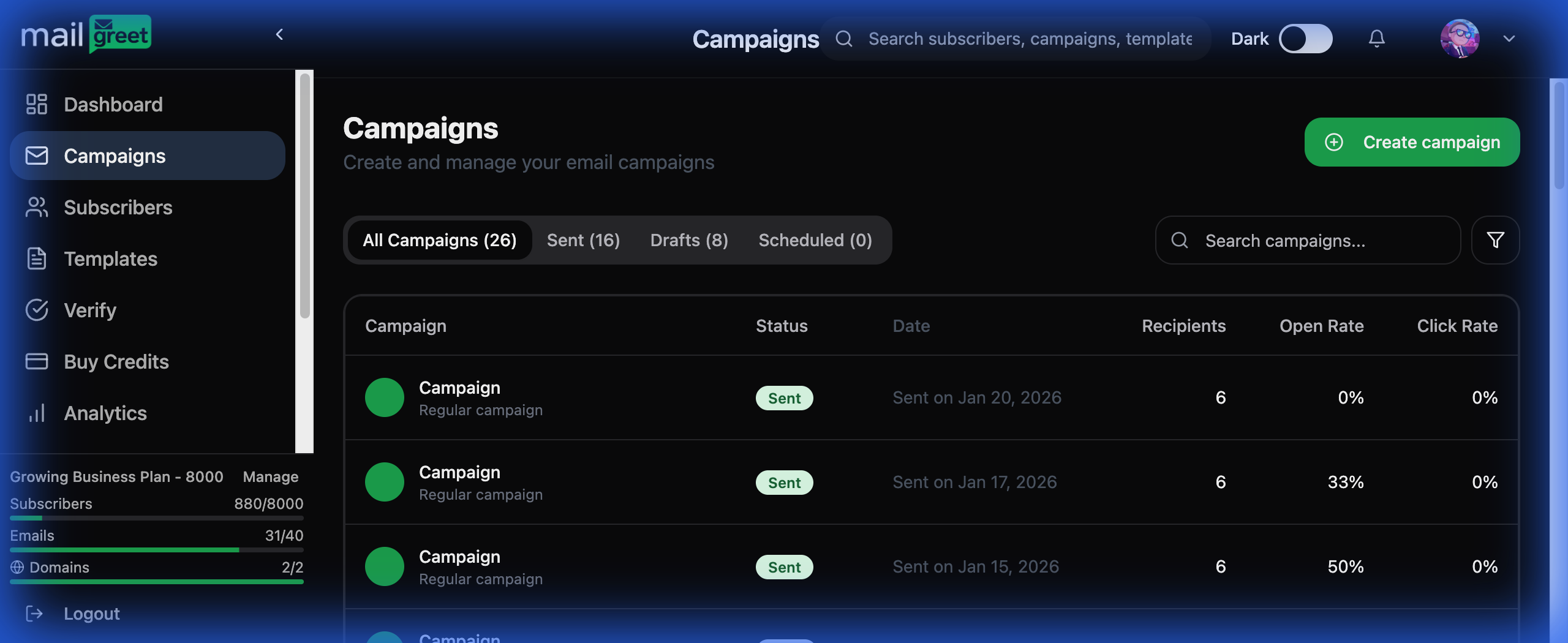
- Click Create campaign
- Enter your campaign name
- Select or create your email template
- Write a compelling subject line
- Choose which subscriber group to send to
- Preview and send a test email
- Schedule or send immediately!
5
Track Your Results
After sending, monitor your campaign performance from the Dashboard: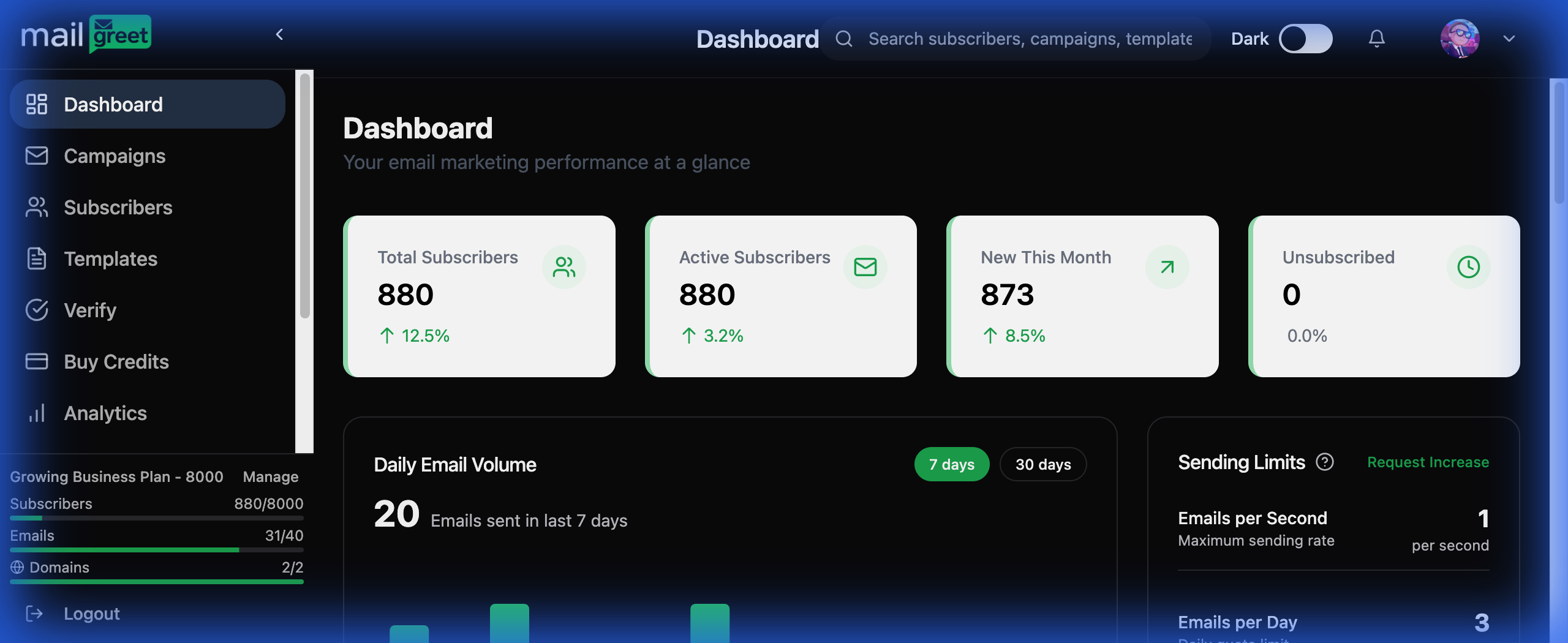
- Open Rate: How many recipients opened your email
- Click Rate: Percentage of clicks on your links
- Bounces: Undeliverable addresses
- Unsubscribes: Contacts who opted out
Essential Tips for Success
Verify Your Domain
Improve deliverability by verifying your sending domain in Settings → Domains. This shows email providers your emails are legitimate.
Clean Your List
Use the built-in Verify feature to validate email addresses before sending. Invalid emails hurt your sender reputation.
Test Before Sending
Always send test emails to yourself before launching a campaign. Check for broken links, images, and formatting.
Personalize Content
Use merge tags like
{$first_name} to personalize emails. Personalized emails get 26% higher open rates.Keyboard Shortcuts
Speed up your workflow with these handy shortcuts:What’s Next?
Now that you’ve sent your first campaign, explore these features to level up your email marketing:Segments
Create dynamic audiences based on subscriber behavior and attributes
Automation
Set up welcome sequences and triggered email workflows
Analytics
Deep dive into your campaign performance data
Custom Fields
Collect and use additional subscriber information
API Access
Integrate MailGreet with your apps and services
Verification
Keep your list clean with email and phone validation
Need Help? Our support team is ready to assist you! Email us at support@mailgreet.com or check our detailed guides in the sidebar.