

Creating a Campaign
This guide walks you through the complete process of creating, designing, and sending an email campaign in MailGreet.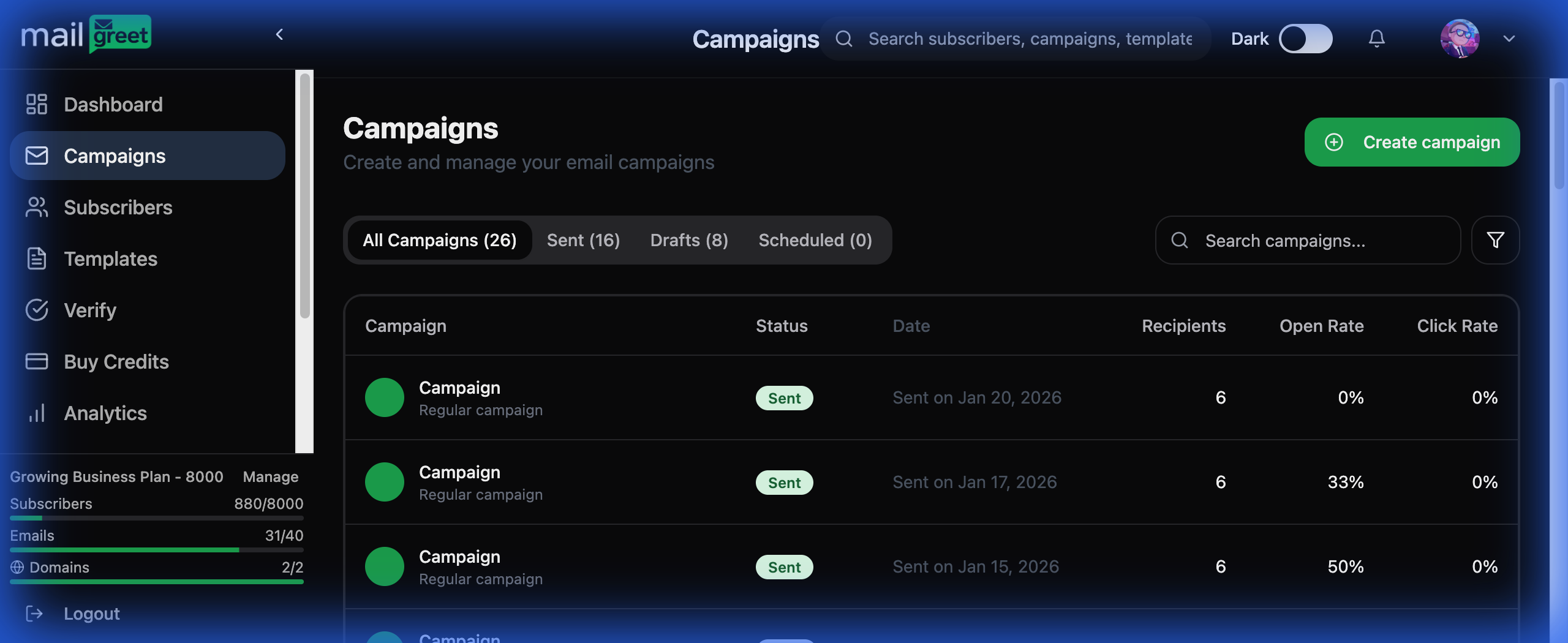
Campaign Creation Workflow
1
Start Your Campaign
- Navigate to Campaigns in the sidebar
- Click the Create Campaign button
- Enter a meaningful campaign name (for internal reference)
- Choose your campaign type (Regular is most common)
2
Choose Recipients
Select who will receive your email:
- All Subscribers: Send to everyone
- Specific Groups: Target particular subscriber groups
- Segments: Use dynamic segments based on behavior or attributes
- Exclude Groups: Prevent certain groups from receiving
3
Select a Template
Choose how you want to create your email:
4
Design Your Email
Use the editor to customize your content:
Content Blocks
Content Blocks
- Text: Headlines, paragraphs, lists
- Image: Upload or select from library
- Button: Call-to-action buttons
- Social Links: Social media icons
- Divider: Horizontal separators
- Video: Video thumbnails with play button
- Custom HTML: Advanced custom code
Design Tips
Design Tips
- Keep your branding consistent with logo and colors
- Use clear visual hierarchy with headings
- Keep paragraphs short and scannable
- Make CTAs stand out with contrasting colors
- Always preview on mobile devices
5
Configure Settings
Set up your campaign details:Essential Settings:
- Subject Line: Aim for 30-50 characters, make it compelling
- Preview Text: The snippet shown in inbox previews
- From Name: Your brand or personal name
- From Email: Your verified sender address
- Reply-To: Where replies should go
- Enable/disable open and click tracking
- Add Google Analytics tracking parameters
- Configure social media preview cards
6
Test Before Sending
Click Preview & Test to:
- Send test emails to yourself and team members
- Check formatting on desktop and mobile
- Verify all links work correctly
- Confirm personalization tags render properly
- Run spam score checks
7
Send or Schedule
Choose your delivery method:
- Send Now: Immediate delivery
- Schedule: Set specific date and time
- Time Zone Optimization: Send based on recipient’s local time
- Smart Send: Optimal timing based on engagement data
Campaign Analytics
After sending, monitor your campaign’s performance:Open Rate
Percentage of recipients who opened your email. Industry average: 15-25%
Click Rate
Percentage of recipients who clicked links. Industry average: 2-5%
Bounce Rate
Failed deliveries. Keep under 2% for good deliverability
Unsubscribe Rate
Opt-outs from this campaign. Normal range: 0.1-0.5%
Advanced Analytics Features
- Click Map: Visual heatmap of which links get the most clicks
- Device Breakdown: Desktop vs. mobile open statistics
- Location Data: Geographic distribution of engagement
- Time Analysis: When emails were opened
- Engagement Timeline: Activity patterns over time
Campaign Status Guide
Best Practices
Subject Line Optimization
Subject Line Optimization
- Keep under 50 characters for mobile visibility
- Avoid ALL CAPS and excessive punctuation (!!!)
- Use personalization like
{$first_name}when relevant - Create urgency or curiosity without being clickbait
- A/B test different approaches regularly
Email Content Tips
Email Content Tips
- Write in a conversational, friendly tone
- Focus on benefits, not just features
- Include ONE clear call-to-action per email
- Break content into scannable sections
- Use bullet points for easy reading
- Balance text and images (60% text, 40% images)
Send Time Optimization
Send Time Optimization
- Tuesday, Wednesday, Thursday have highest engagement
- Mid-morning (10am) and mid-afternoon (2pm) perform well
- Consider your audience’s work schedule and habits
- Test different times and track results
- Use timezone optimization for global audiences
Deliverability Tips
Deliverability Tips
- Maintain permission-based subscriber lists only
- Remove inactive subscribers regularly
- Avoid spam trigger words in subject and content
- Verify your sending domain (SPF, DKIM, DMARC)
- Keep bounce rates under 2%
- Send consistently to build sender reputation
Troubleshooting Common Issues
- Low Open Rates
- Low Click Rates
- High Unsubscribes
Possible causes:
- Subject line not compelling enough
- Sender reputation issues
- Emails landing in spam
- Sending at wrong times
- Inactive subscribers on list
- A/B test subject lines
- Verify your domain
- Clean your subscriber list
- Test different send times
Next Steps
Campaign Reports
Learn to analyze and act on your campaign data
A/B Testing
Optimize your campaigns with split testing
Scheduling
Master campaign scheduling and automation
Templates
Create reusable email templates