

Subscriber Management Guide
Understanding Subscribers
Types of Subscribers
MailGreet classifies subscribers into different categories:- Active: Engaged subscribers who have opened or clicked your emails recently
- Unconfirmed: Subscribers who haven’t confirmed their subscription (for double opt-in)
- Unsubscribed: People who have opted out of your emails
- Bounced: Email addresses that have hard-bounced (permanently undeliverable)
- Junk: Addresses marked as spam traps or known problematic domains
Subscriber Data Fields
Standard fields available for all subscribers:- Email address (required)
- First name
- Last name
- Company
- Phone
- Country
- City
- Address
- Zip/Postal code
- Birthday
- Gender
- IP address
- Signup source
Managing Your Subscriber List
Viewing Subscribers
To view existing subscribers:-- Navigate to the Subscribers section in the sidebar.
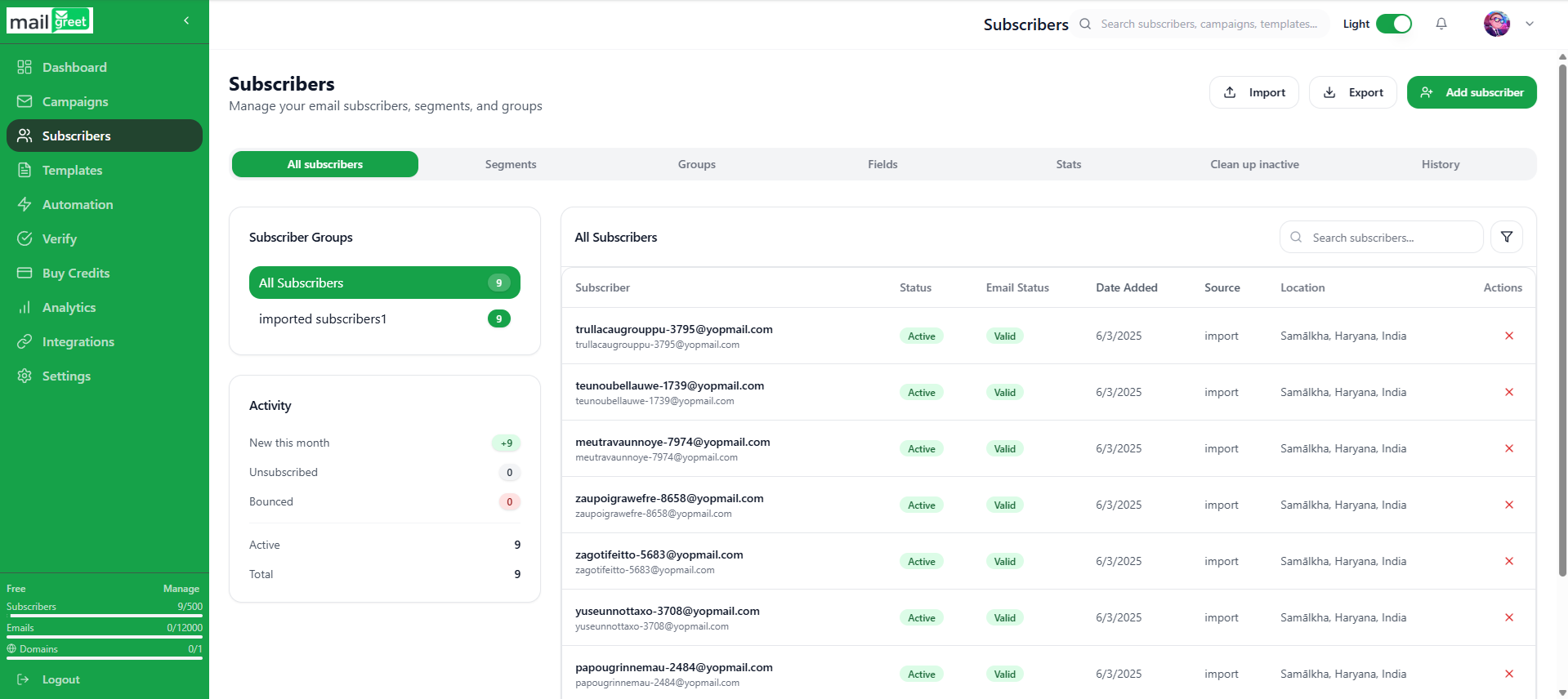
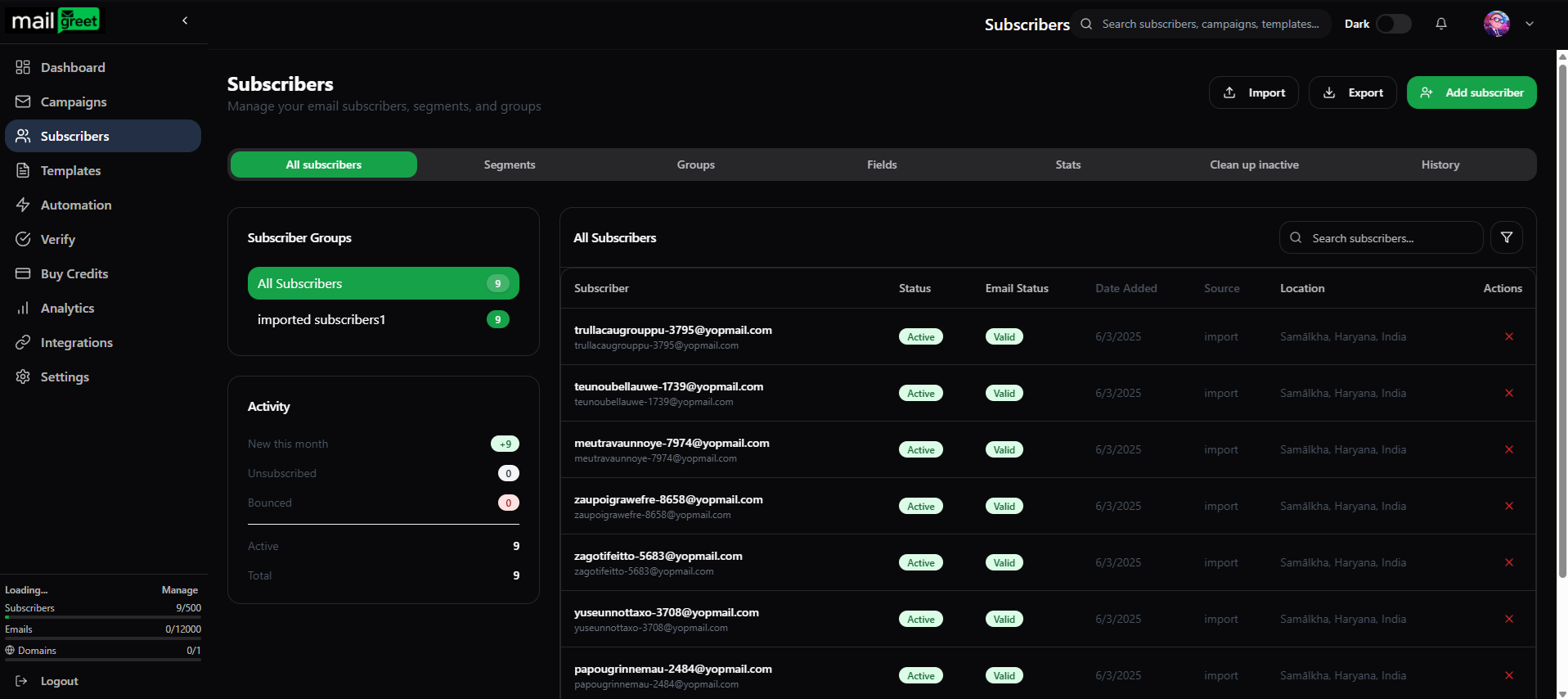
- The main view shows all active subscribers
- Use filters to narrow down by:
- Subscription date
- Groups
- Fields
- Activity (opened, clicked)
- Location
- Email client
Add Individual Subscribers
To add subscribers manually:-- Navigate to the Subscribers section in the sidebar.
- Click Add Subscriber button.
- The Add new subscriber dialog box will appear.
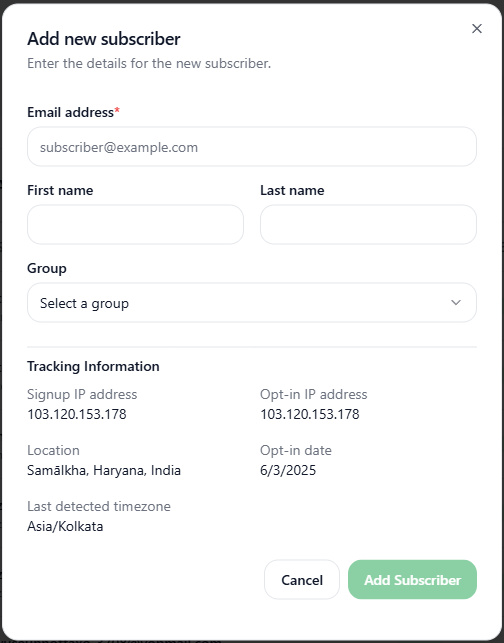
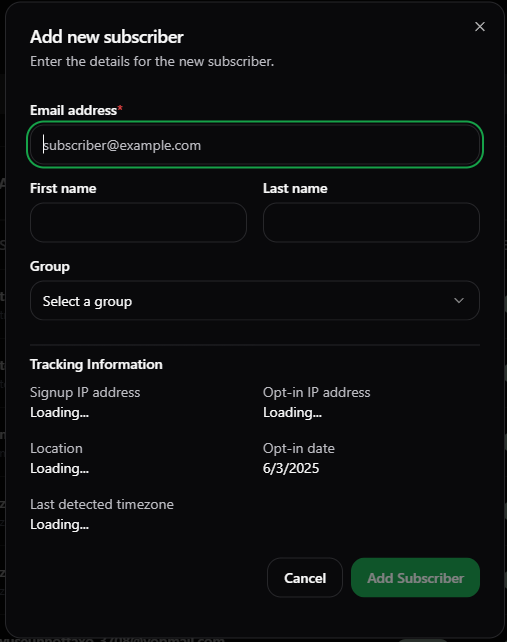
- Enter email address (required), First name, Last name.
- Select the appropriate group(s).
- Click on the Add Subscriber button.
- The email address will be automatically verified upon signup and the new subscriber will be shown as the topmost entry in the All Subscribers section.
- Now, you have successfully added a new subscriber.
Bulk Importing Subscribers
Import Subscribers
This guide will teach you how to import multiple subscribers at once.
Required Format for Import Files
For successful imports, your file should:- Include headers as the first row
- Have “email” as a column header for email addresses
- Use UTF-8 encoding for special characters
- Not exceed 100,000 subscribers per import
Exporting Subscribers
Export Subscribers
This guide will teach you how to export multiple subscribers at once.
Subscriber Groups
Creating and Managing Groups
Create Group
This guide will teach you how to create a group.
Moving Subscribers Between Groups
Move Subscriber between Groups
This guide will teach you how to move subscriber between groups.
Removing Subscribers from Groups
To remove subscribers from specific groups:- Navigate to the Subscribers page.
- Click on the All subscribers tab.
- Click on the particular subscriber in the All Subscribers section which you want to remove from the group.
- In the Subscriber Information section, click on the Edit button.
- A Edit Subscriber dialog box will appear.
- In the Groups section, deselect the chosen group to remove the subscriber from this particular group.
- Click on Save Changes button.
Subscriber Segments
Understanding Segments vs. Groups
- Groups: Static collections of subscribers manually assigned or based on signup form
- Segments: Dynamic, rule-based collections that update automatically based on criteria
Creating Segments
Create targeted segments based on subscriber data or behavior:Creating Segments
This guide will teach you how to create segments.
Example Segment Conditions
- Subscribers who opened a specific campaign
- Subscribers who clicked on a specific link
- Subscribers from a specific country
- Subscribers who joined after a certain date
- Subscribers who haven’t opened any emails in 90 days
- Subscribers who have completed a purchase (custom field)
Using Segments
Segments can be used for:- Targeted campaign sending
- Re-engagement campaigns
- Cleaning your list
- Analyzing subscriber behavior
- Creating lookalike audiences for advertising
Custom Fields
Adding Custom Fields
Creating/Adding Custom Fields
This guide will teach you how to create/add custom fields.
Common Custom Field Uses
- Purchase history
- Product preferences
- Subscription tier
- Member since date
- Lead score
- Registration source
- Survey responses
- Customer ID
Using Custom Fields in Campaigns
- In the email editor, click where you want to insert the field
- Select Personalization
- Choose your custom field from the dropdown
- Add fallback text for subscribers without data in that field
Troubleshooting
Common Subscriber Issues
High Unsubscribe Rates- Audit your sending frequency
- Review content relevance
- Check for permission issues
- Segment your list for better targeting
- Clean inactive subscribers
- Improve subject lines
- Enhance content quality
- Test sending times
- Segment for relevance
- Check file format (CSV, encoding)
- Verify required headers
- Reduce file size if too large
- Fix formatting issues in data
- Remove invalid addresses
- Verify email addresses at signup
- Use double opt-in
- Check for typos in domains
Getting Support
If you encounter issues managing subscribers:- Check the MailGreet Knowledge Base
- Contact support via live chat
- Email info@mailgreet.com
- Post questions in the community forum