

Verify Single Phone Number
To verify a single phone number:-- Navigate to the Verify page.
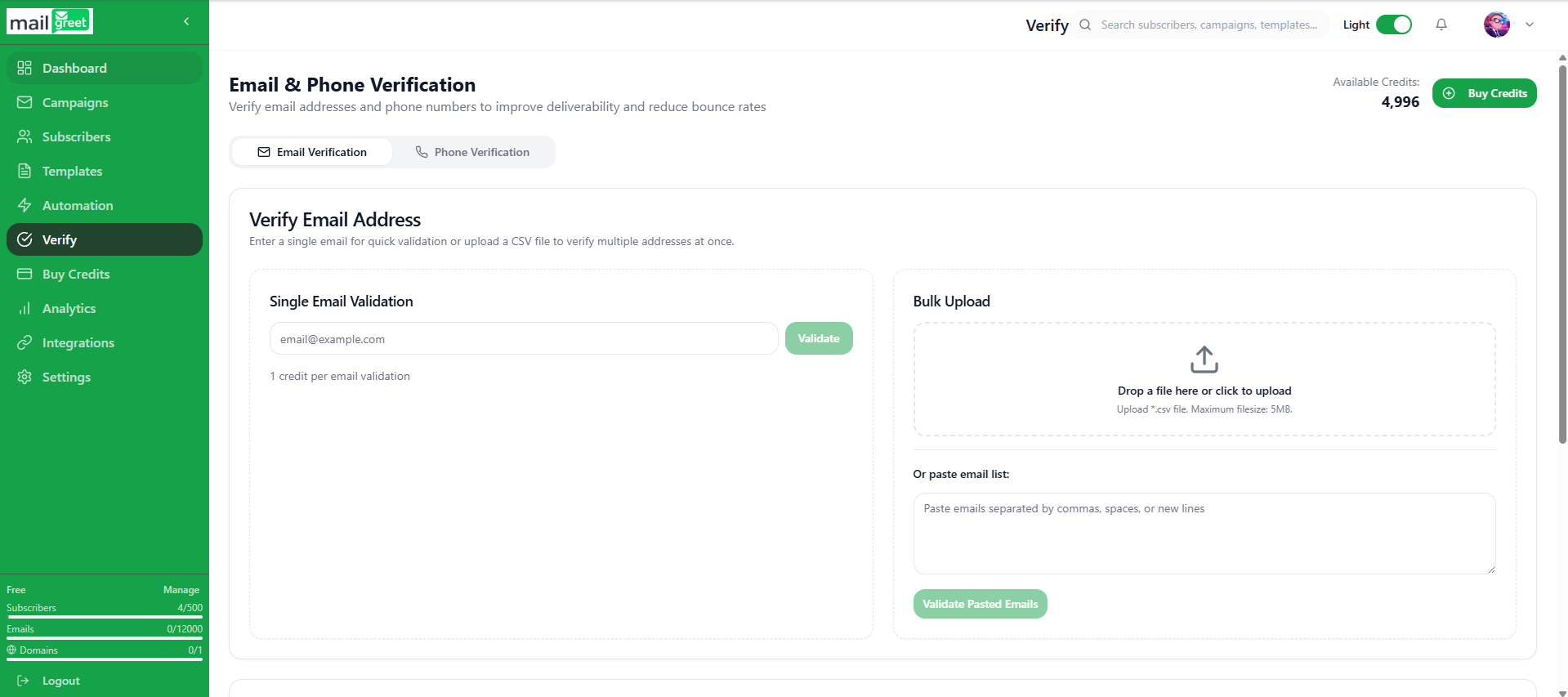
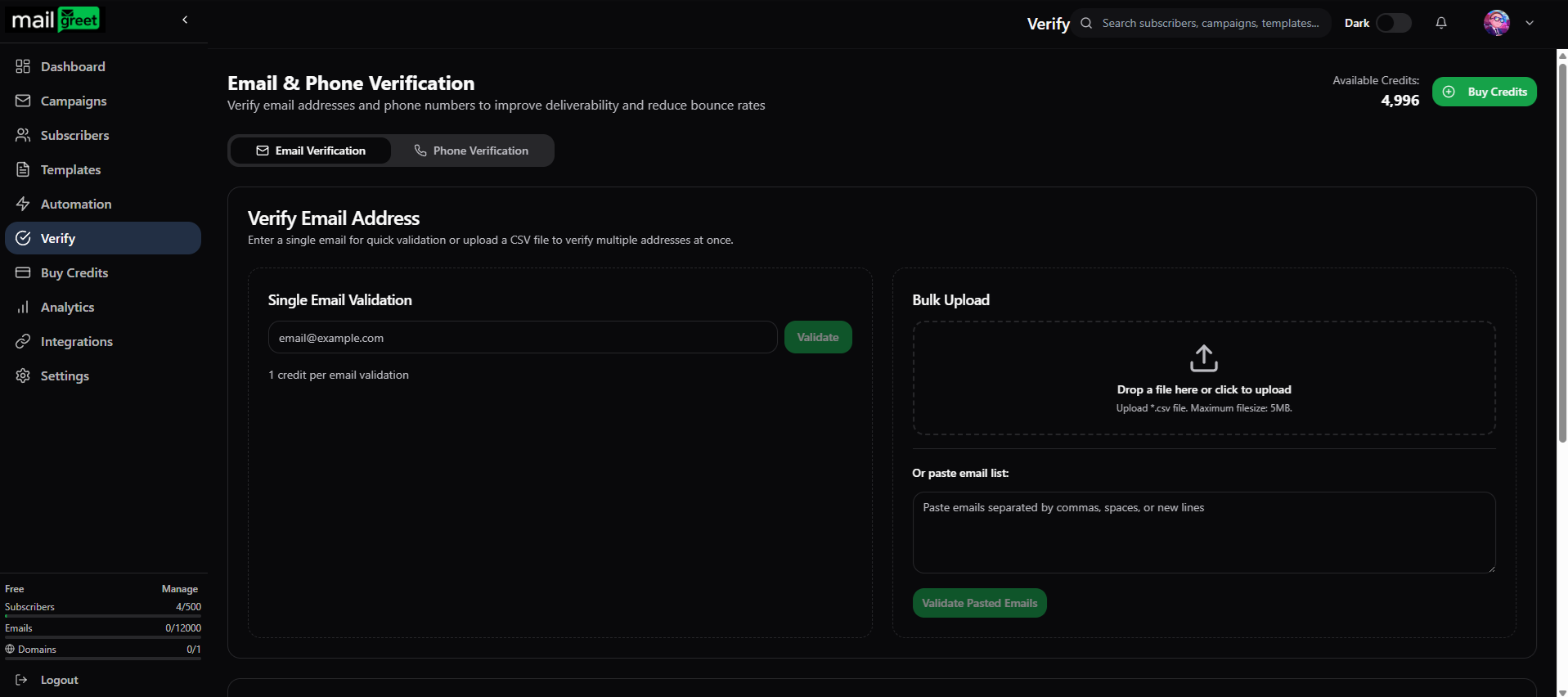
- Click on the Phone Verification tab.
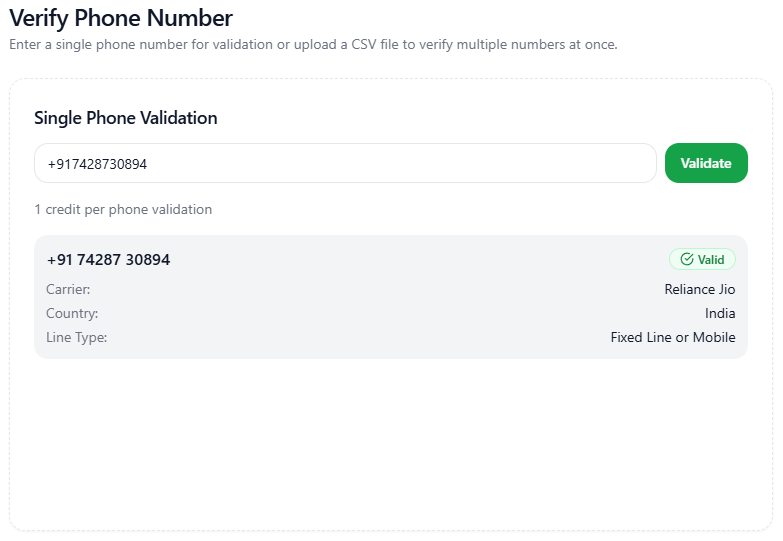
- In the Single Phone Validation section, enter the phone number you want to verify in the given input field.
- Click on the Validate button next to it.
Note: 1 credit is used per 1 phone number validation.
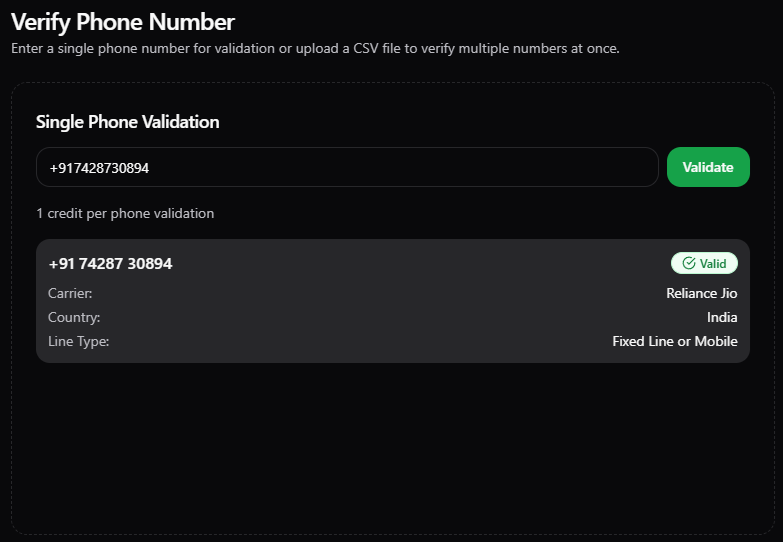
- You will see the validation details below the input text field in which you enter the phone number.
- Or, you can also see the validation report in the Recent Validations section at the bottom of the page.
- The latest entry will be the topmost entry.


- Now, you have successfully validated the single phone number.
Verify Multiple Phone Numbers
To verify multiple phone numbers at once:-- Navigate to the Verify page.
- Click on the Phone Verification tab.
- There are two ways to do multiple phone numbers verification.
- First, under Bulk Upload section, upload the .csv file containing multiple phone numbers.
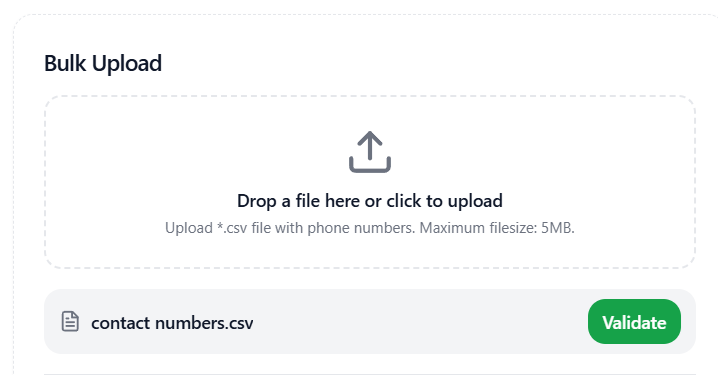
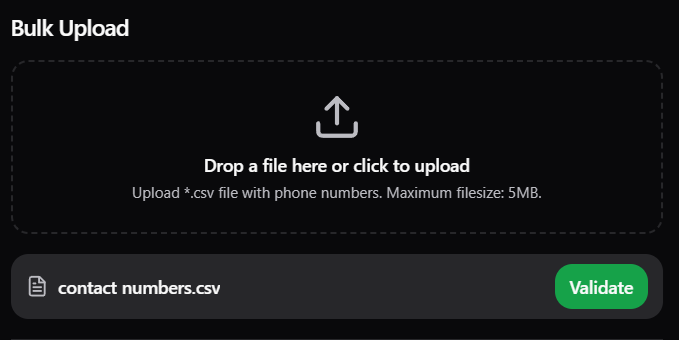
- Click the Validate button in front of the uploaded file.
- The file verification will occur and will take a few moments.
- You can see the file verification progress under the Recent Validations.
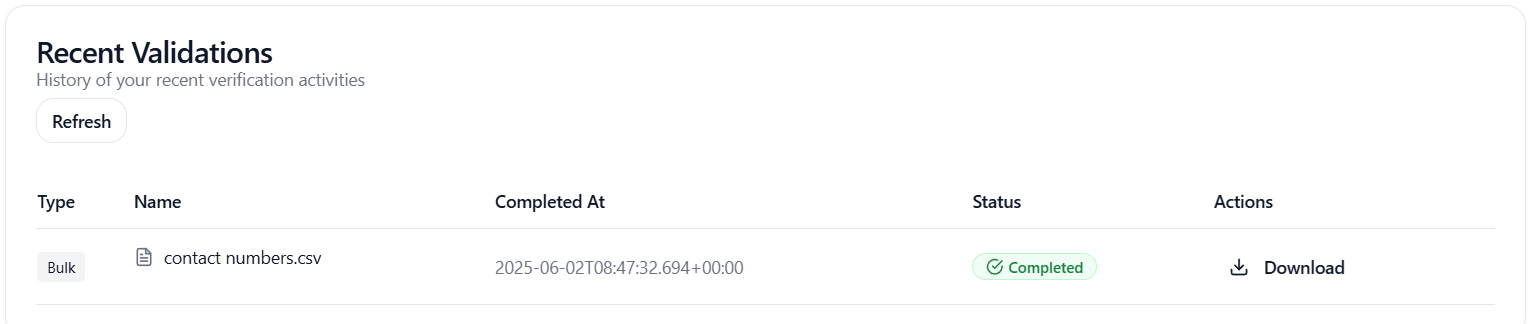
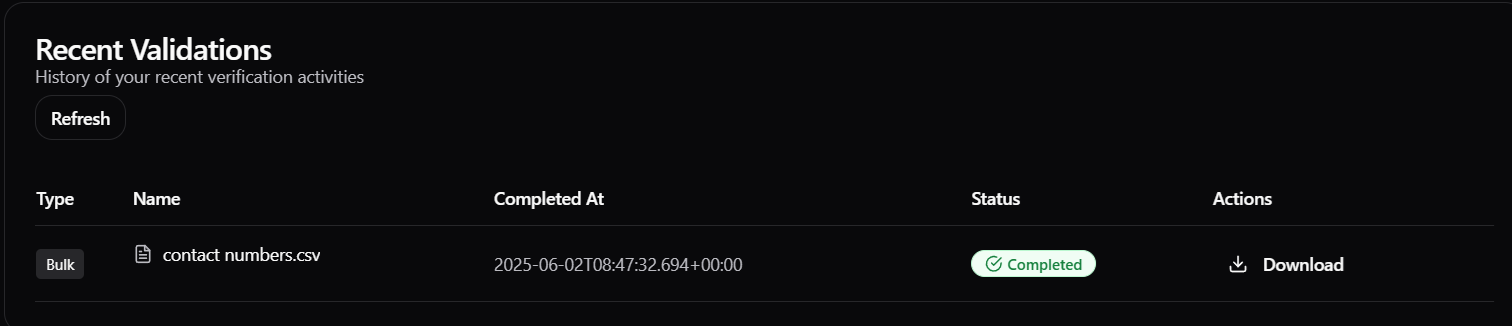
- Click on the report in the Recent Validations section to see the Validation Summary dialogbox.
- The dialogbox contains the phone numbers validation report.
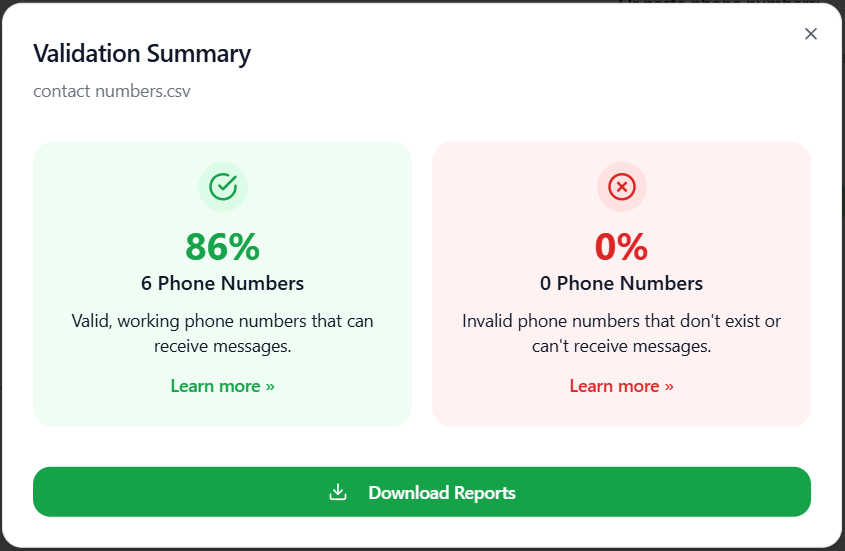
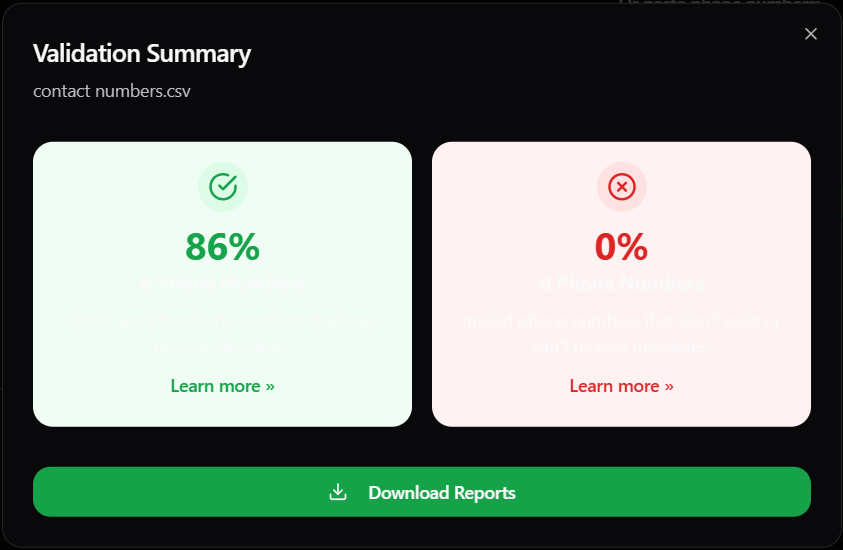
- You can also download the report by clicking on the Download Reports button.
- You will get three options, Valid Only, Invalid Only, Download All.
- Choose the appropriate option and the download will automatically started.
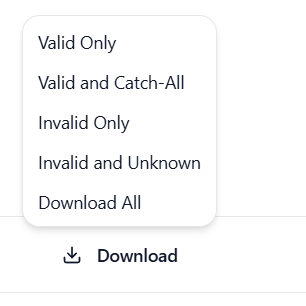
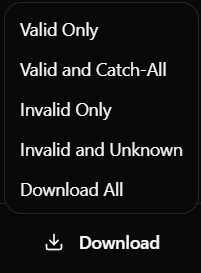
- Or, you can click on the Download button under the Actions field.
- You will get five options such as Valid Only, Valid and Catch-All, Invalid Only, Invalid and Unknown, Download All.
- Second, under the Or paste phone numbers section, paste multiple phone numbers for verification separated by spaces, commas and newlines.
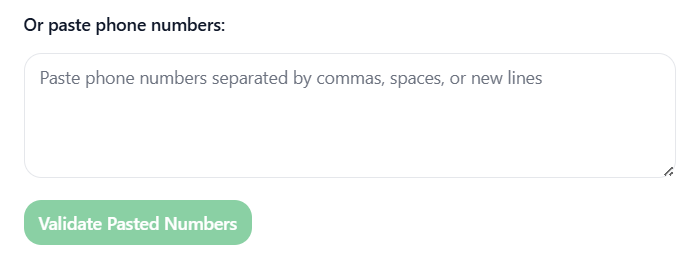
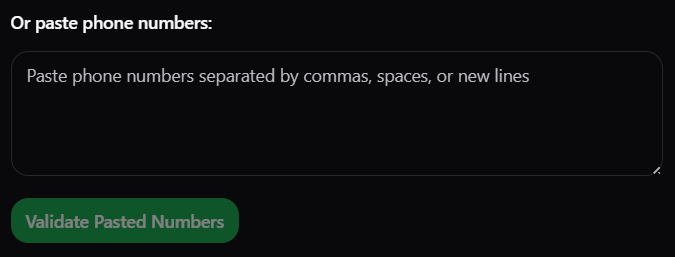
- The Validate Pasted Numbers button will be activated.
- Click on it to validate multiple phone numbers at once.
- The phone verification will occur and will take a few moments.
- You can see the phone verification progress under the Recent Validations.
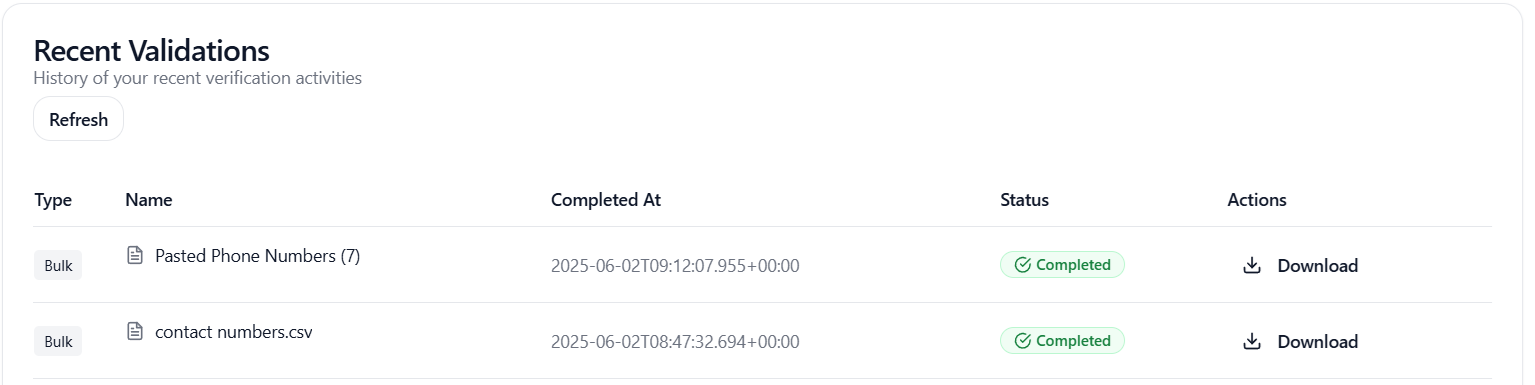
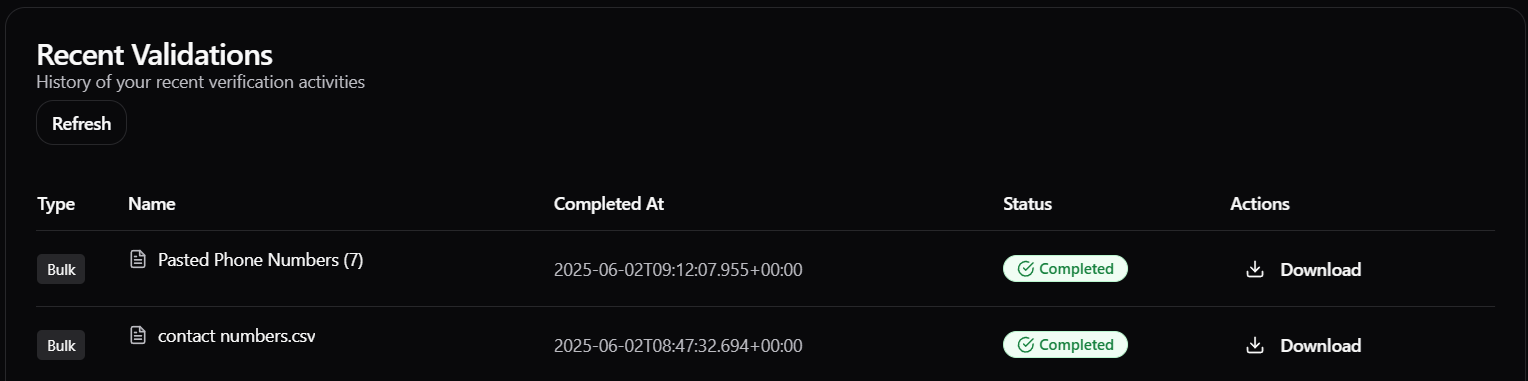
- You can click on the latest entry in the Recent Validations section to check the report.
- A Validation Summary dialog box will appear.
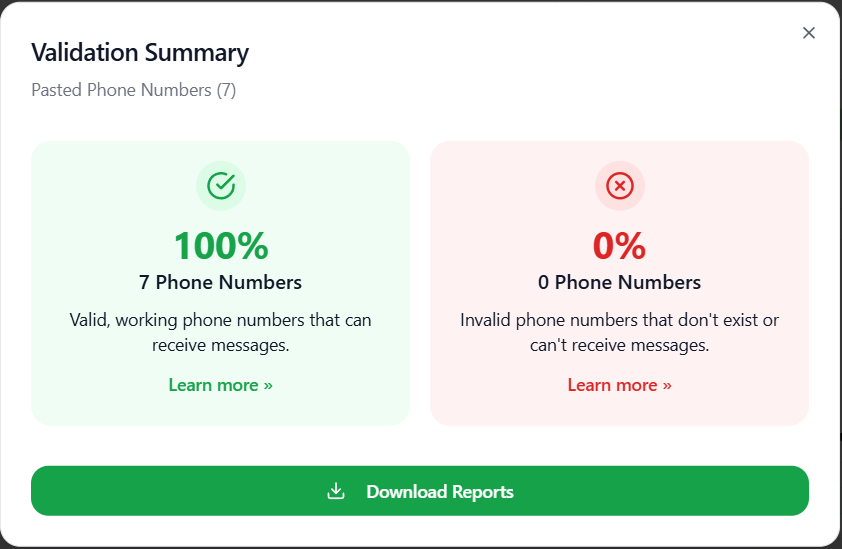
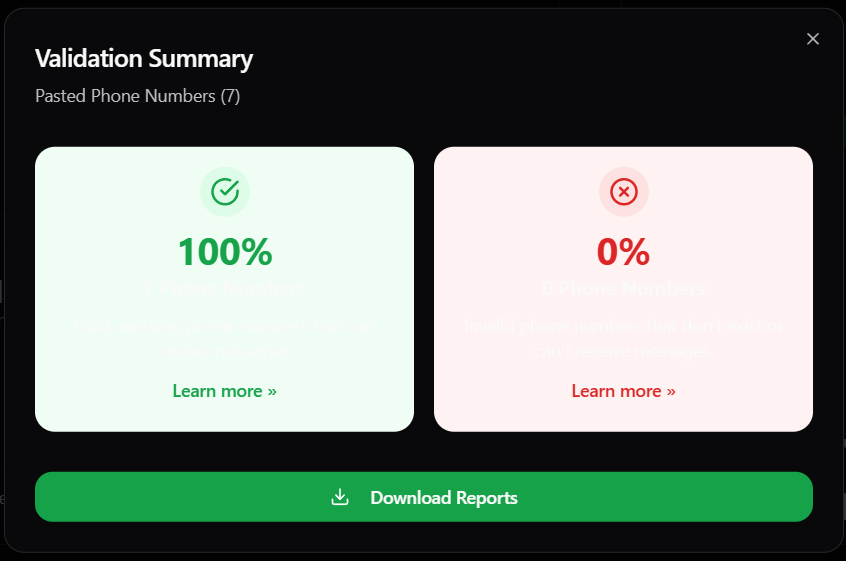
- You can either click on the Download Reports button or on the Download button of the respective pasted phone numbers list below the Actions field to download the report according to several options that you will get when you click these respective buttons.
- After clicking the button, your reports will get downloaded automatically.
- Now, you have successfully validate multiple phone numbers at once using two methods.