> ## Documentation Index
> Fetch the complete documentation index at: https://docs.mailgreet.com/llms.txt
> Use this file to discover all available pages before exploring further.
# Phone Number Verification
> Verify phone numbers with MailGreet single and bulk validation to ensure accurate contact data and improve SMS deliverability
**MailGreet** offers you the facility to verify the phone numbers.
## Verify Single Phone Number
To verify a single phone number:-
1. Navigate to the [Verify](https://mailgreet.com/dashboard/verify) page.
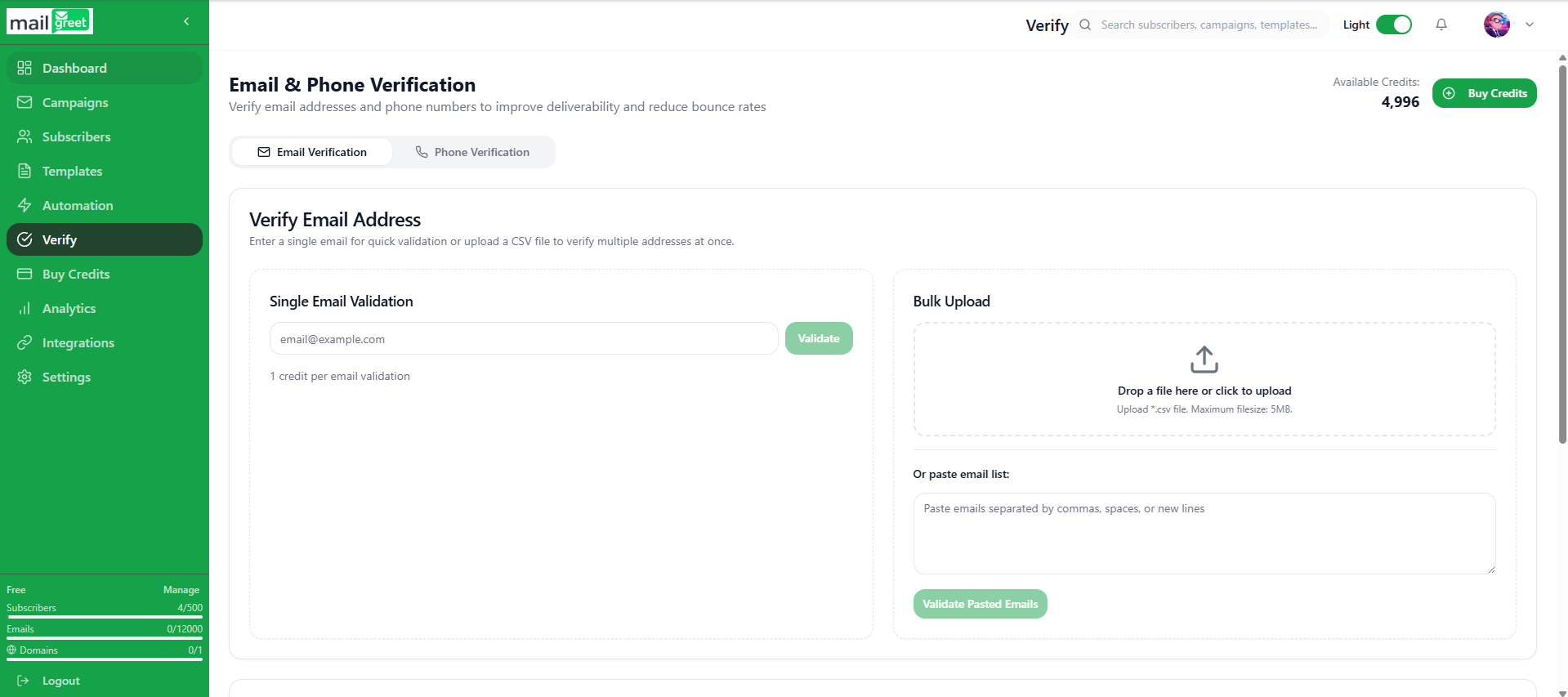
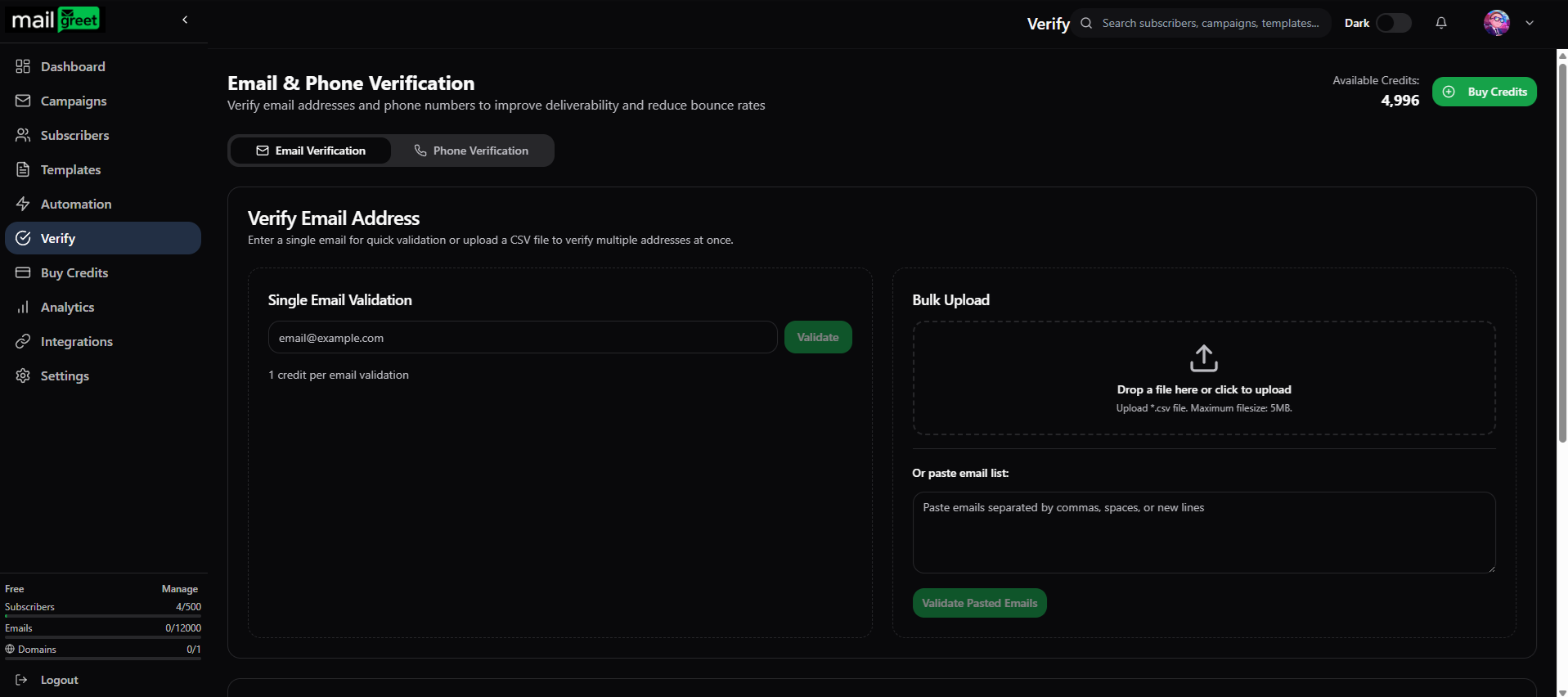 2. Click on the **Phone Verification** tab.
3. In the **Single Phone Validation** section, enter the phone number you want to verify in the given input field.
4. Click on the **Validate** button next to it.
**Note**: **1 credit** is used per 1 phone number validation.
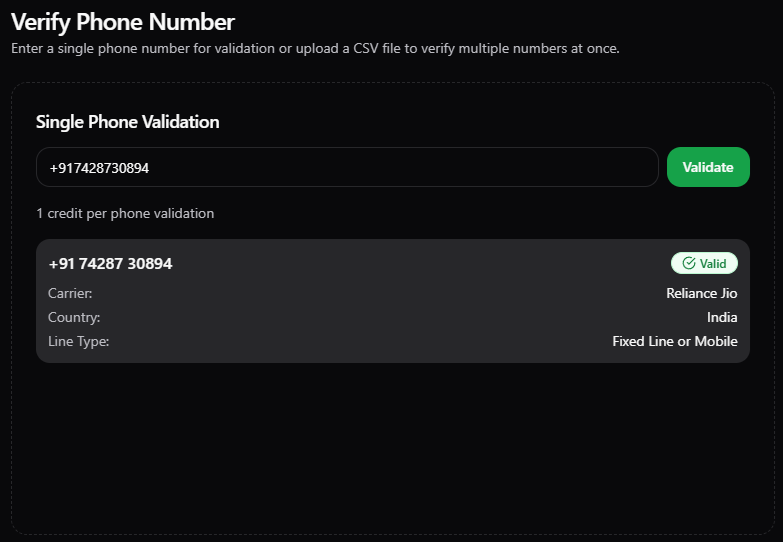
5. You will see the validation details below the input text field in which you enter the phone number.
2. Click on the **Phone Verification** tab.
3. In the **Single Phone Validation** section, enter the phone number you want to verify in the given input field.
4. Click on the **Validate** button next to it.
**Note**: **1 credit** is used per 1 phone number validation.
5. You will see the validation details below the input text field in which you enter the phone number.
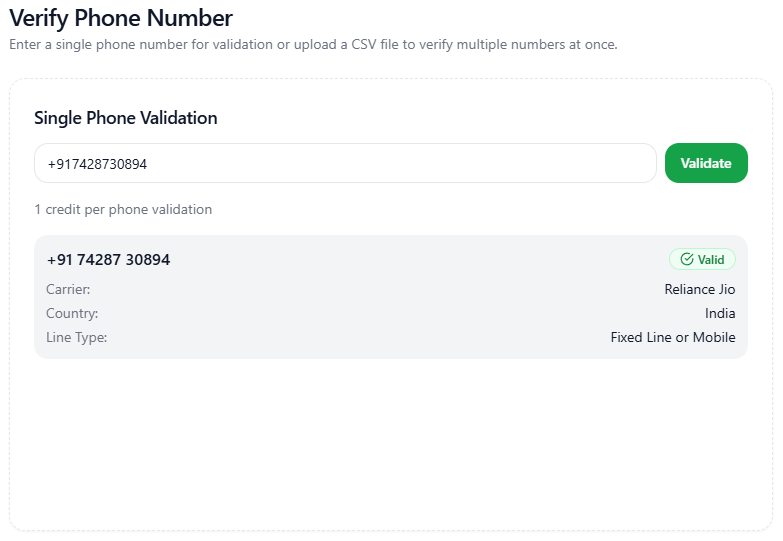
 6. Or, you can also see the validation report in the **Recent Validations** section at the bottom of the page.
7. The latest entry will be the topmost entry.
6. Or, you can also see the validation report in the **Recent Validations** section at the bottom of the page.
7. The latest entry will be the topmost entry.

 8. Now, you have successfully validated the single phone number.
## Verify Multiple Phone Numbers
To verify multiple phone numbers at once:-
1. Navigate to the [Verify](https://mailgreet.com/dashboard/verify) page.
2. Click on the **Phone Verification** tab.
3. There are **two ways** to do **multiple phone numbers verification**.
4. First, under **Bulk Upload** section, upload the .csv file containing multiple phone numbers.
8. Now, you have successfully validated the single phone number.
## Verify Multiple Phone Numbers
To verify multiple phone numbers at once:-
1. Navigate to the [Verify](https://mailgreet.com/dashboard/verify) page.
2. Click on the **Phone Verification** tab.
3. There are **two ways** to do **multiple phone numbers verification**.
4. First, under **Bulk Upload** section, upload the .csv file containing multiple phone numbers.
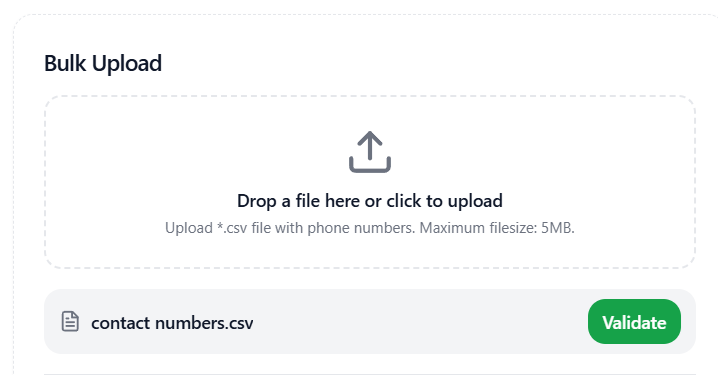
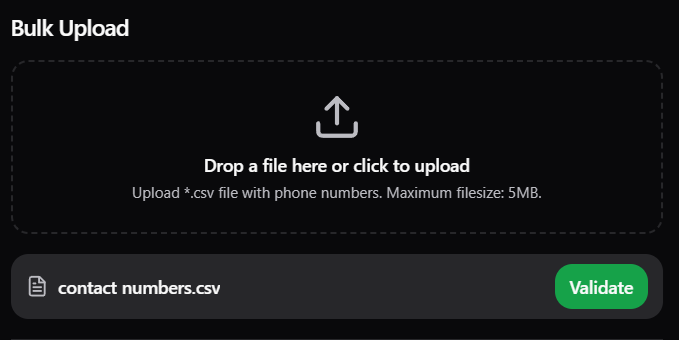 5. Click the **Validate** button in front of the uploaded file.
6. The file verification will occur and will take a few moments.
7. You can see the file verification progress under the **Recent Validations**.
5. Click the **Validate** button in front of the uploaded file.
6. The file verification will occur and will take a few moments.
7. You can see the file verification progress under the **Recent Validations**.
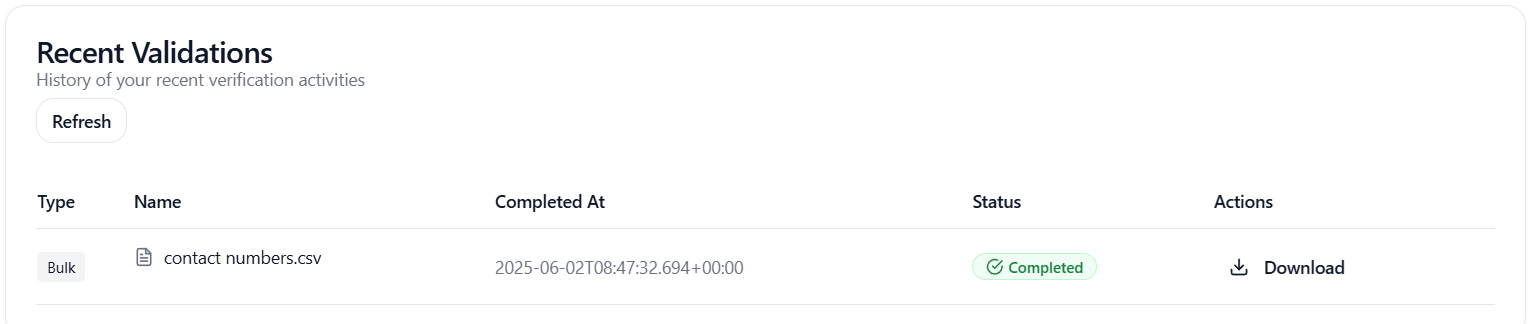
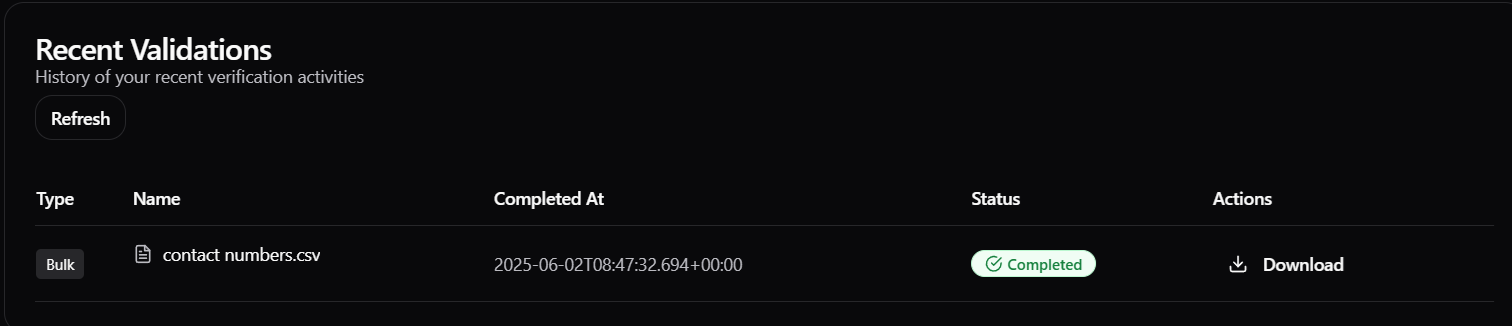 8. Click on the report in the **Recent Validations** section to see the **Validation Summary** dialogbox.
9. The dialogbox contains the phone numbers validation report.
8. Click on the report in the **Recent Validations** section to see the **Validation Summary** dialogbox.
9. The dialogbox contains the phone numbers validation report.
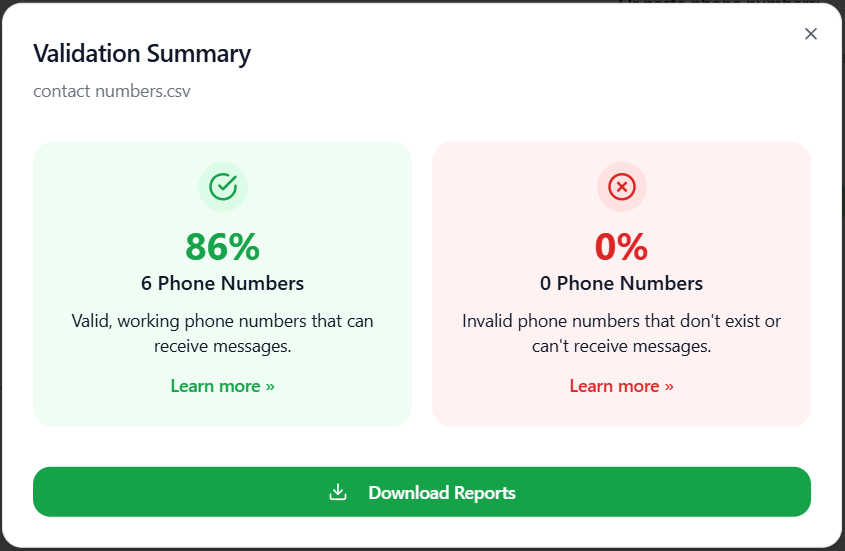
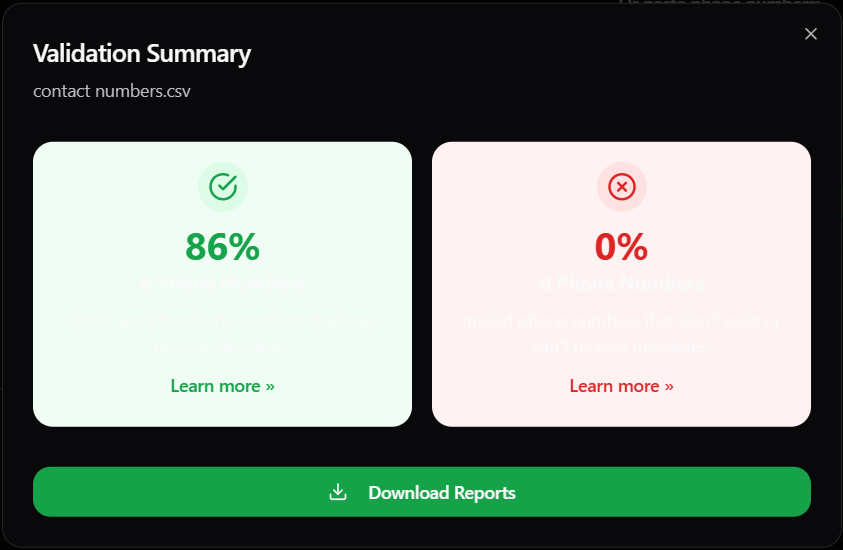 10. You can also download the report by clicking on the **Download Reports** button.
11. You will get three options, **Valid Only**, **Invalid Only**, **Download All**.
12. Choose the appropriate option and the download will automatically started.
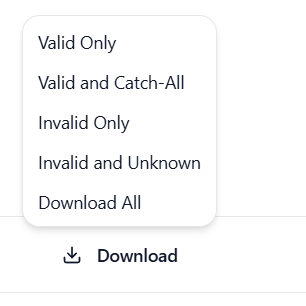
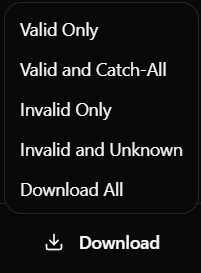
13. Or, you can click on the **Download** button under the **Actions** field.
14. You will get five options such as **Valid Only**, **Valid and Catch-All**, **Invalid Only**, **Invalid and Unknown**, **Download All**.
10. You can also download the report by clicking on the **Download Reports** button.
11. You will get three options, **Valid Only**, **Invalid Only**, **Download All**.
12. Choose the appropriate option and the download will automatically started.
13. Or, you can click on the **Download** button under the **Actions** field.
14. You will get five options such as **Valid Only**, **Valid and Catch-All**, **Invalid Only**, **Invalid and Unknown**, **Download All**.
 15. Second, under the **Or paste phone numbers** section, paste multiple phone numbers for verification separated by spaces, commas and newlines.
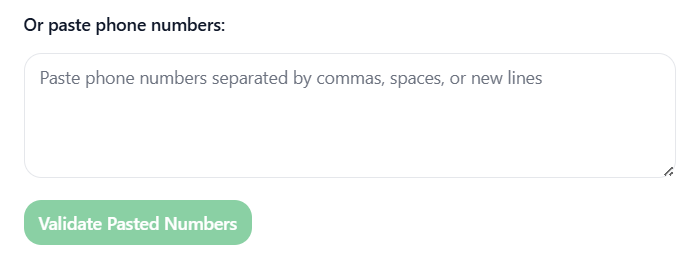
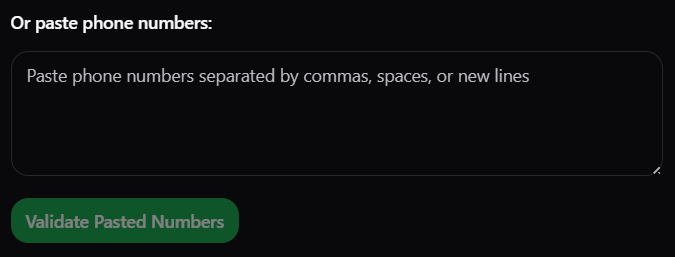 16. The **Validate Pasted Numbers** button will be activated.
17. Click on it to validate multiple phone numbers at once.
18. The phone verification will occur and will take a few moments.
19. You can see the phone verification progress under the **Recent Validations**.
16. The **Validate Pasted Numbers** button will be activated.
17. Click on it to validate multiple phone numbers at once.
18. The phone verification will occur and will take a few moments.
19. You can see the phone verification progress under the **Recent Validations**.
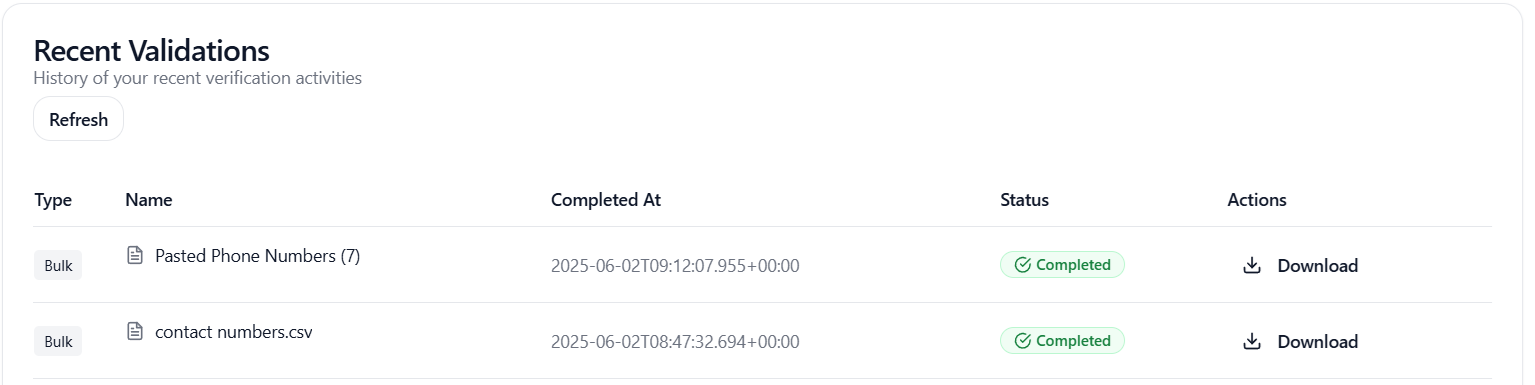
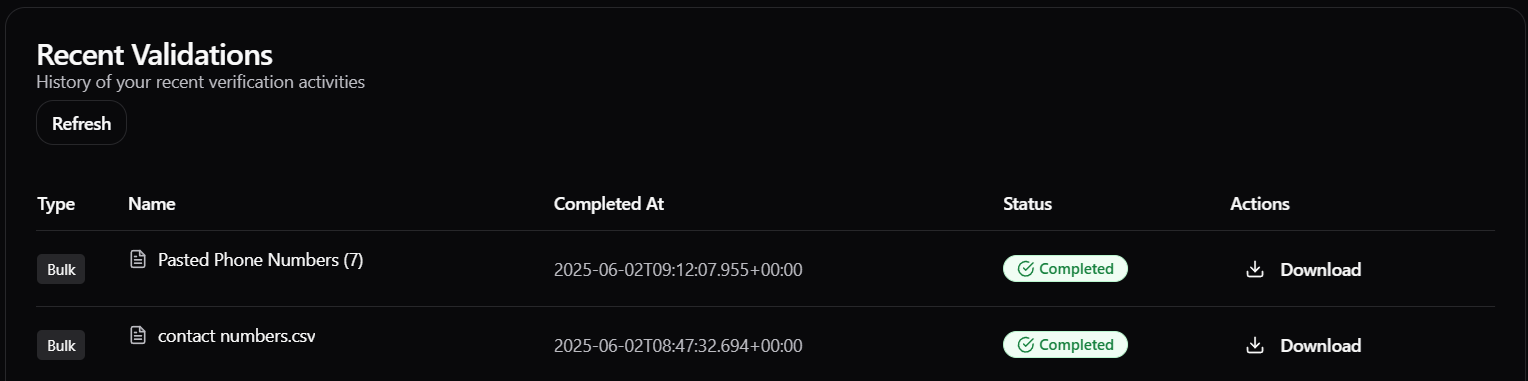 20. You can click on the latest entry in the **Recent Validations** section to check the report.
21. A **Validation Summary** dialog box will appear.
20. You can click on the latest entry in the **Recent Validations** section to check the report.
21. A **Validation Summary** dialog box will appear.
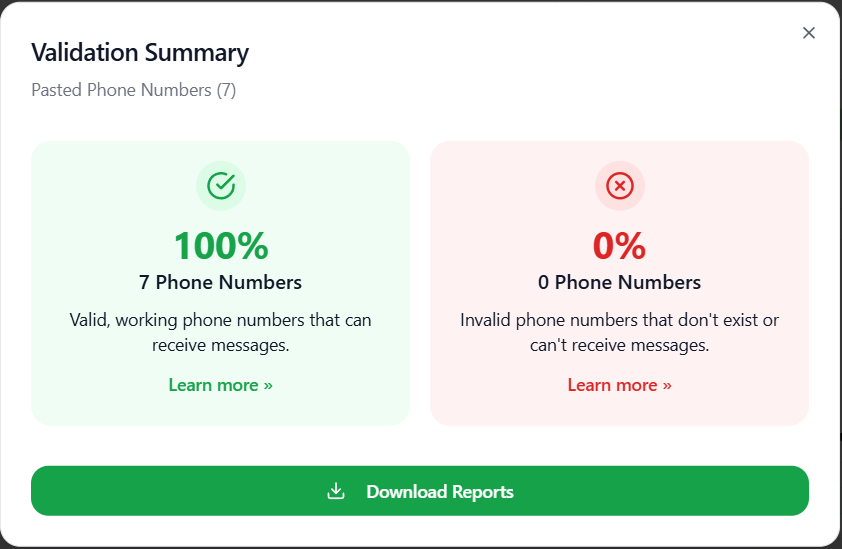
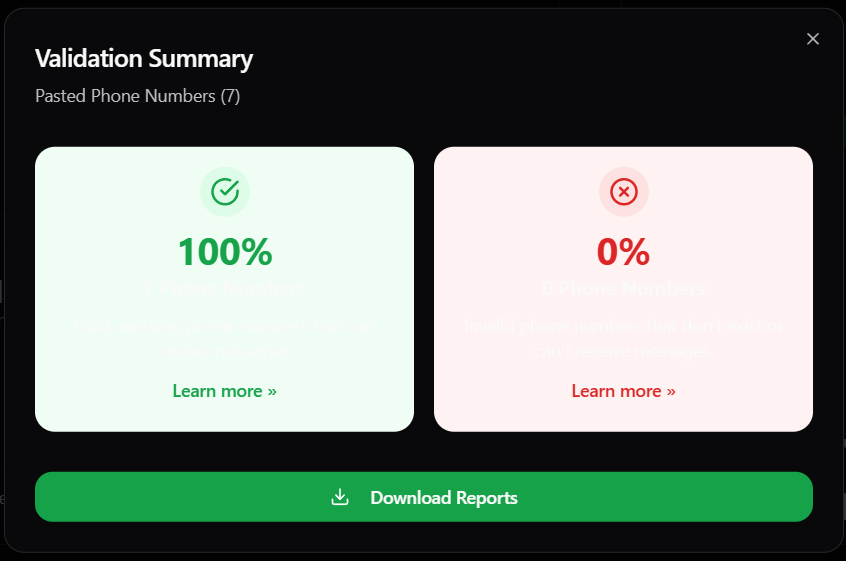 22. You can either click on the **Download Reports** button or on the **Download** button of the respective pasted phone numbers list below the **Actions** field to download the report according to several options that you will get when you click these respective buttons.
23. After clicking the button, your reports will get downloaded automatically.
24. Now, you have successfully validate multiple phone numbers at once using two methods.
22. You can either click on the **Download Reports** button or on the **Download** button of the respective pasted phone numbers list below the **Actions** field to download the report according to several options that you will get when you click these respective buttons.
23. After clicking the button, your reports will get downloaded automatically.
24. Now, you have successfully validate multiple phone numbers at once using two methods.