> ## Documentation Index
> Fetch the complete documentation index at: https://docs.mailgreet.com/llms.txt
> Use this file to discover all available pages before exploring further.
# Create a Campaign
> Step-by-step guide to creating and sending email campaigns in MailGreet
# Creating a Campaign
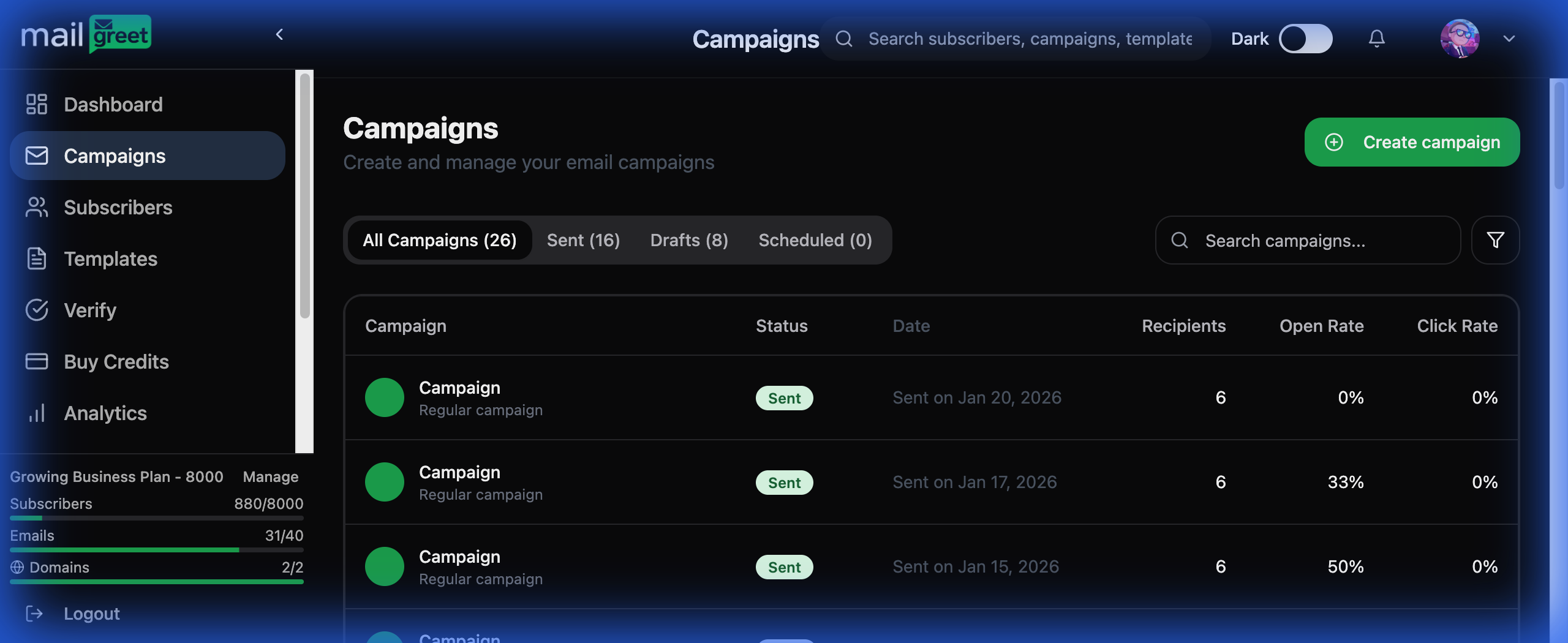
This guide walks you through the complete process of creating, designing, and sending an email campaign in MailGreet.
 ***
## Campaign Creation Workflow
1. Navigate to **Campaigns** in the sidebar
2. Click the **Create Campaign** button
3. Enter a meaningful campaign name (for internal reference)
4. Choose your campaign type (Regular is most common)
Select who will receive your email:
* **All Subscribers**: Send to everyone
* **Specific Groups**: Target particular subscriber groups
* **Segments**: Use dynamic segments based on behavior or attributes
* **Exclude Groups**: Prevent certain groups from receiving
Always check the estimated recipient count before proceeding.
Choose how you want to create your email:
| Option | Best For |
| ---------------------- | ---------------------------------- |
| **Recent Templates** | Reusing designs you've used before |
| **Saved Templates** | Your custom branded templates |
| **Gallery Templates** | Pre-designed professional layouts |
| **HTML Upload** | Importing from design tools |
| **Block Builder** | Visual drag-and-drop creation |
| **Start from Scratch** | Complete creative freedom |
Use the editor to customize your content:
* **Text**: Headlines, paragraphs, lists
* **Image**: Upload or select from library
* **Button**: Call-to-action buttons
* **Social Links**: Social media icons
* **Divider**: Horizontal separators
* **Video**: Video thumbnails with play button
* **Custom HTML**: Advanced custom code
* Keep your branding consistent with logo and colors
* Use clear visual hierarchy with headings
* Keep paragraphs short and scannable
* Make CTAs stand out with contrasting colors
* Always preview on mobile devices
Set up your campaign details:
**Essential Settings:**
* **Subject Line**: Aim for 30-50 characters, make it compelling
* **Preview Text**: The snippet shown in inbox previews
* **From Name**: Your brand or personal name
* **From Email**: Your verified sender address
* **Reply-To**: Where replies should go
**Optional Settings:**
* Enable/disable open and click tracking
* Add Google Analytics tracking parameters
* Configure social media preview cards
Always test your campaign before sending to your full list!
Click **Preview & Test** to:
* Send test emails to yourself and team members
* Check formatting on desktop and mobile
* Verify all links work correctly
* Confirm personalization tags render properly
* Run spam score checks
Choose your delivery method:
* **Send Now**: Immediate delivery
* **Schedule**: Set specific date and time
* **Time Zone Optimization**: Send based on recipient's local time
* **Smart Send**: Optimal timing based on engagement data
***
## Campaign Analytics
After sending, monitor your campaign's performance:
Percentage of recipients who opened your email. Industry average: 15-25%
Percentage of recipients who clicked links. Industry average: 2-5%
Failed deliveries. Keep under 2% for good deliverability
Opt-outs from this campaign. Normal range: 0.1-0.5%
### Advanced Analytics Features
* **Click Map**: Visual heatmap of which links get the most clicks
* **Device Breakdown**: Desktop vs. mobile open statistics
* **Location Data**: Geographic distribution of engagement
* **Time Analysis**: When emails were opened
* **Engagement Timeline**: Activity patterns over time
***
## Campaign Status Guide
| Status | Description |
| ------------- | --------------------------------------- |
| **Draft** | Campaign is being created, not yet sent |
| **Scheduled** | Set to send at a future date/time |
| **Sending** | Currently being delivered to recipients |
| **Sent** | Completely delivered to all recipients |
| **Paused** | Scheduled campaign put on hold |
***
## Best Practices
* Keep under 50 characters for mobile visibility
* Avoid ALL CAPS and excessive punctuation (!!!)
* Use personalization like `{$first_name}` when relevant
* Create urgency or curiosity without being clickbait
* A/B test different approaches regularly
* Write in a conversational, friendly tone
* Focus on benefits, not just features
* Include ONE clear call-to-action per email
* Break content into scannable sections
* Use bullet points for easy reading
* Balance text and images (60% text, 40% images)
* Tuesday, Wednesday, Thursday have highest engagement
* Mid-morning (10am) and mid-afternoon (2pm) perform well
* Consider your audience's work schedule and habits
* Test different times and track results
* Use timezone optimization for global audiences
* Maintain permission-based subscriber lists only
* Remove inactive subscribers regularly
* Avoid spam trigger words in subject and content
* Verify your sending domain (SPF, DKIM, DMARC)
* Keep bounce rates under 2%
* Send consistently to build sender reputation
***
## Troubleshooting Common Issues
**Possible causes:**
* Subject line not compelling enough
* Sender reputation issues
* Emails landing in spam
* Sending at wrong times
* Inactive subscribers on list
**Solutions:**
* A/B test subject lines
* Verify your domain
* Clean your subscriber list
* Test different send times
**Possible causes:**
* Weak call-to-action
* Content not relevant to audience
* Poor design and readability
* Too many links competing for attention
**Solutions:**
* Use clear, action-oriented CTAs
* Segment for more relevant content
* Improve visual hierarchy
* Focus on one primary action per email
**Possible causes:**
* Sending too frequently
* Content not matching expectations
* Wrong audience targeting
* No value provided
**Solutions:**
* Reduce sending frequency
* Survey unsubscribers for feedback
* Better segment your audience
* Focus on providing genuine value
***
## Next Steps
Learn to analyze and act on your campaign data
Optimize your campaigns with split testing
Master campaign scheduling and automation
Create reusable email templates
***
## Campaign Creation Workflow
1. Navigate to **Campaigns** in the sidebar
2. Click the **Create Campaign** button
3. Enter a meaningful campaign name (for internal reference)
4. Choose your campaign type (Regular is most common)
Select who will receive your email:
* **All Subscribers**: Send to everyone
* **Specific Groups**: Target particular subscriber groups
* **Segments**: Use dynamic segments based on behavior or attributes
* **Exclude Groups**: Prevent certain groups from receiving
Always check the estimated recipient count before proceeding.
Choose how you want to create your email:
| Option | Best For |
| ---------------------- | ---------------------------------- |
| **Recent Templates** | Reusing designs you've used before |
| **Saved Templates** | Your custom branded templates |
| **Gallery Templates** | Pre-designed professional layouts |
| **HTML Upload** | Importing from design tools |
| **Block Builder** | Visual drag-and-drop creation |
| **Start from Scratch** | Complete creative freedom |
Use the editor to customize your content:
* **Text**: Headlines, paragraphs, lists
* **Image**: Upload or select from library
* **Button**: Call-to-action buttons
* **Social Links**: Social media icons
* **Divider**: Horizontal separators
* **Video**: Video thumbnails with play button
* **Custom HTML**: Advanced custom code
* Keep your branding consistent with logo and colors
* Use clear visual hierarchy with headings
* Keep paragraphs short and scannable
* Make CTAs stand out with contrasting colors
* Always preview on mobile devices
Set up your campaign details:
**Essential Settings:**
* **Subject Line**: Aim for 30-50 characters, make it compelling
* **Preview Text**: The snippet shown in inbox previews
* **From Name**: Your brand or personal name
* **From Email**: Your verified sender address
* **Reply-To**: Where replies should go
**Optional Settings:**
* Enable/disable open and click tracking
* Add Google Analytics tracking parameters
* Configure social media preview cards
Always test your campaign before sending to your full list!
Click **Preview & Test** to:
* Send test emails to yourself and team members
* Check formatting on desktop and mobile
* Verify all links work correctly
* Confirm personalization tags render properly
* Run spam score checks
Choose your delivery method:
* **Send Now**: Immediate delivery
* **Schedule**: Set specific date and time
* **Time Zone Optimization**: Send based on recipient's local time
* **Smart Send**: Optimal timing based on engagement data
***
## Campaign Analytics
After sending, monitor your campaign's performance:
Percentage of recipients who opened your email. Industry average: 15-25%
Percentage of recipients who clicked links. Industry average: 2-5%
Failed deliveries. Keep under 2% for good deliverability
Opt-outs from this campaign. Normal range: 0.1-0.5%
### Advanced Analytics Features
* **Click Map**: Visual heatmap of which links get the most clicks
* **Device Breakdown**: Desktop vs. mobile open statistics
* **Location Data**: Geographic distribution of engagement
* **Time Analysis**: When emails were opened
* **Engagement Timeline**: Activity patterns over time
***
## Campaign Status Guide
| Status | Description |
| ------------- | --------------------------------------- |
| **Draft** | Campaign is being created, not yet sent |
| **Scheduled** | Set to send at a future date/time |
| **Sending** | Currently being delivered to recipients |
| **Sent** | Completely delivered to all recipients |
| **Paused** | Scheduled campaign put on hold |
***
## Best Practices
* Keep under 50 characters for mobile visibility
* Avoid ALL CAPS and excessive punctuation (!!!)
* Use personalization like `{$first_name}` when relevant
* Create urgency or curiosity without being clickbait
* A/B test different approaches regularly
* Write in a conversational, friendly tone
* Focus on benefits, not just features
* Include ONE clear call-to-action per email
* Break content into scannable sections
* Use bullet points for easy reading
* Balance text and images (60% text, 40% images)
* Tuesday, Wednesday, Thursday have highest engagement
* Mid-morning (10am) and mid-afternoon (2pm) perform well
* Consider your audience's work schedule and habits
* Test different times and track results
* Use timezone optimization for global audiences
* Maintain permission-based subscriber lists only
* Remove inactive subscribers regularly
* Avoid spam trigger words in subject and content
* Verify your sending domain (SPF, DKIM, DMARC)
* Keep bounce rates under 2%
* Send consistently to build sender reputation
***
## Troubleshooting Common Issues
**Possible causes:**
* Subject line not compelling enough
* Sender reputation issues
* Emails landing in spam
* Sending at wrong times
* Inactive subscribers on list
**Solutions:**
* A/B test subject lines
* Verify your domain
* Clean your subscriber list
* Test different send times
**Possible causes:**
* Weak call-to-action
* Content not relevant to audience
* Poor design and readability
* Too many links competing for attention
**Solutions:**
* Use clear, action-oriented CTAs
* Segment for more relevant content
* Improve visual hierarchy
* Focus on one primary action per email
**Possible causes:**
* Sending too frequently
* Content not matching expectations
* Wrong audience targeting
* No value provided
**Solutions:**
* Reduce sending frequency
* Survey unsubscribers for feedback
* Better segment your audience
* Focus on providing genuine value
***
## Next Steps
Learn to analyze and act on your campaign data
Optimize your campaigns with split testing
Master campaign scheduling and automation
Create reusable email templates